
Screenshots


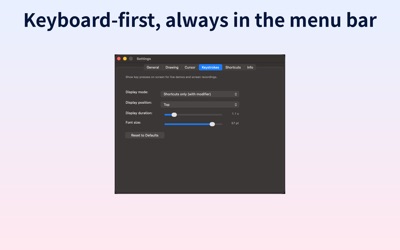
About Annotify - Screen Annotation
Annotify — Screen Annotation & Cursor Highlight for Mac
Draw directly on your screen during presentations, online meetings, and tutorials. Annotations appear as overlays above all applications.
Drawing Tools:
- Freehand, Arrow, Arrow with Comment, Line, Rectangle, Circle, Text, Mosaic, Eraser
- Each tool has a single-key shortcut (R, C, F, L, A, W, T, M, E)
- 10-color palette: Pink, Orange, Yellow, Green, Teal, Blue, Indigo, Purple, White, Black
- Adjustable line width and text size
- Passthrough mode: starts with no tool selected — your Mac operates normally. Activate a tool only when needed, press Esc to return
- Click any annotation to select, drag to move, use handles to resize or rotate. Double-click text to edit. Press Delete to remove
- Right-click the toolbar to show or hide individual tools
Cursor Highlight:
Three modes — Ripple, Crosshair, Circle. Customizable color and animation direction.
Floating Capture:
Capture any area as a floating window (Ctrl+S). Click to copy to clipboard, Option+click to save to folder.
Keystroke Display:
Show the keys and shortcuts you press as an overlay on your screen — ideal for tutorials, screencasts, and demos so viewers can see exactly what you're typing. Press Ctrl+K to toggle.
Global Hotkeys:
- Ctrl+W: Toggle annotation mode
- Ctrl+Q: Toggle cursor highlight
- Ctrl+S: Floating capture
- Ctrl+K: Toggle keystroke display
- Esc: Deselect tool / Exit annotation mode
Multi-language: English, Japanese, French, German, Spanish.
Privacy Policy: https://techback.info/annotify/privacy-policy.html
Terms of Use (EULA): https://techback.info/annotify/terms-of-use.html
AVALW Coverage
Not yet mentioned in AVALW articles.
Similar apps


 Phone by GoogleGoogle LLCReliable phone calls with spam protection, caller ID and more helpful features★ 4.4 52440k


 Google Play servicesGoogle LLCGoogle Play services - Google services for Android apps★ 4.3 44573k


 Call of Duty®: Modern Warfare® 4 (Windows)Activision Publishing Inc.War erupts on the Korean Peninsula as North Korea launches a full-scale invasion that threatens to destabilize the world in Call of Duty®: Modern Warfare® 4. A ★ 4.3 16579k


 gov.brServiços e Informações do BrasilGov.br is a means of user access to digital public services.★ 4.6 14047k


 MyTelkomsel – Buy InternetTelkomselBuy credit, internet quota, streaming, game voucher & get cashback with e-wallet★ 3.8 12353k


 myIM3: Data Plan & Buy PackageIndosat Ooredoo HutchisonCheck balance & quota, detect & block spam, exchange IMPoin only on myIM3★ 4.4 11302k


 Files by GoogleGoogle LLCClean up your phone, find files, play media, and share files offline★ 4.5 9097k


 CNH do BrasilServiços e Informações do BrasilDigital driver's license and vehicle registration certificate, first driver's license, traffic violation and vehicle information.★ 4.9 8390k
More by this developer


 KeepBy - Expiry Trackerkosuke konumaKeepBy keeps your household's time-sensitive things in one place — food expiry dates and appliance warranties — and shares them with your family. • Food & warra-


 Taskin - Menu Bar Task Managerkosuke konumaTaskin is a lightweight task manager that lives in your macOS menu bar. Add, complete, and organize tasks with a single click. No complex setup - start being pr-


 IntervalTimer Duokosuke konumaIntervalTimer Duo is a simple and easy-to-use interval timer app for iPhone and iPad that runs up to 10 timers in sequence. 【Key Uses】 • HIIT (High-Intensity In-


 CalSyncAlert - Calendar Alarmkosuke konumaNever miss a calendar event again. CalSyncAlert turns your calendar events into full-screen alarms that can't be ignored. Standard notifications get buried. Cal★ 3.7 3