
Screenshots


About Quall Studio
Share your screen or camera with another device on your local network and prepare your script in the Quall Studio teleprompter.
Choose Mirror on the sending device and Receive on the receiving device. For the first connection, one device shows a 4-digit code and you tap the same number on the other; with a computer, you can also scan the QR code it shows. After that the device is remembered and reconnects without typing anything. The PIN is still available as an alternative. Devices need compatible Quall Studio versions (1.0.29 on iPhone, iPad, Mac and Windows, and the OBS plugin 1.0.29) and must be able to communicate on the same local network.
On the receiver, record the camera or mirrored screen you receive. Tap Record, then Stop recording. The file includes audio received in the session; playback volume and mute do not change that audio. Recordings are saved to Photos with your permission. If they cannot be added to Photos, use Save file to export the retained files. Recording also ends when the connection closes or the app moves to the background.
Use Show the text to read a script and another device to control scrolling and edit the text. In Text + camera, follow your script beside the preview and record your camera locally. Starting a recording does not automatically enable the microphone.
The interface is available in English and Portuguese. Available cameras, controls, audio sources and quality depend on your device and operating system. Only share and record content you are authorized to use, with participants' consent.
Support: https://queven.com.br/en/quall/support/
Privacy: https://queven.com.br/en/quall/privacy/
Usage information: https://queven.com.br/en/quall/terms/
Apple Standard EULA: https://www.apple.com/legal/internet-services/itunes/dev/stdeula/
Corresponding source code: https://github.com/Quevenapp/Quall
AVALW Coverage
Not yet mentioned in AVALW articles.
Similar apps


 YouTubeGoogleGet the official YouTube app on iPhones and iPads. See what the world is watching -- from the hottest music videos to what’s popular in gaming, fashion, beauty,★ 4.7 49315k


 InstagramInstagram, Inc.Little moments lead to big friendships. Share yours on Instagram. — From Meta Connect with friends, find other fans, and see what people around you are up to an★ 4.7 29567k

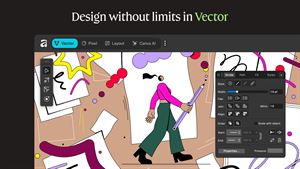
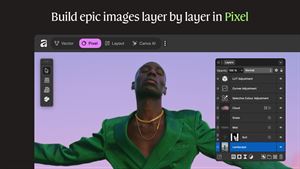
 Affinity by CanvaCanvaONE APP TO CRAFT IT ALL, FOR NO COST AT ALL. Design. Edit. Lay it out. Affinity gives you vector, pixel, and layout tools, all in the same professional-grade ap★ 4.8 27291k


 Video Editor & Maker - InShotInShot Video EditorAI video editor with music! Edit video with effects, slideshow & slow motion★ 4.8 24760k


 MX PlayerAmazon Mobile LLCPowerful video player with advanced hardware acceleration and subtitle supports★ 4.2 14336k


 VivaVideo - Video Cut & EditorQuVideo Inc. Video Editor & Video Maker AppAI Video Editor: AI Templates, Text to Video, Extract Audio, Auto Caption.★ 4.3 12268k


 YouCut - Video Editor & MakerInShot Video EditorAI Video Editor with Music, Filter, Slideshow, Effect, Merge & Trim Video.★ 4.8 8635k


 Screen Recorder - XRecorderInShot Inc.Record games with audio. Smooth, HD screen capture & Built-in video editor.★ 4.7 7662k


