
Screenshots


About Video recorder with trigger
Video Recorder with Trigger starts recording by itself when it hears a sound or sees movement.
Set it up, tap Wait for trigger, and leave it. It's for everything you can't sit and wait for: wildlife in the garden at night, a dog that barks while you're out, a visitor at the door, a noise you want to catch in the act.
SOUND OR MOVEMENT
• Trigger on sound, on movement in the picture, or on whichever happens first.
• A live level bar for each, with its trigger slider right underneath on the same scale, so it's easy to set the trigger above the background noise or a still scene.
ONLY WHEN IT MATTERS
• Detection area: mark the part of the picture to watch — a doorway, a path, a bird feeder — and movement elsewhere is ignored.
• People, cats and dogs: start recording only when one of them moves, not leaves, shadows or rain.
• Sound types: listen only for the sounds you choose — a dog barking, voices, a baby crying, a door, a car and about twenty more. Sounds are recognised on your device; nothing is uploaded.
• Each recording shows what set it off, such as "Movement: 46 · Person" or "Sound level: 61 · Dog".
RECORD YOUR WAY
• Video or photos.
• Record for a set length, or continuously until you stop.
• Re-trigger: get ready for the next sound or movement as soon as a recording ends, and catch every one.
• A countdown before starting, with optional sounds, and an optional torch flash.
• Front or back camera, and recordings level with the horizon however the phone is held.
• Hide the controls for a clear view of the picture while you wait or record.
YOUR RECORDINGS
• Thumbnails, notes and six colour groups, sorted by date, length or group.
• See where each recording was made on a map, or every recording in a group.
• Share, save to Photos, or select several at once to group, share or delete.
• Recently Deleted keeps deleted recordings for 30 days, so a mistake can be undone.
MADE FOR iPHONE AND iPAD
• On iPad your recordings list and playback sit side by side, with larger controls on the main screen.
• Works in any orientation, and in Split View and Stage Manager.
HELP BUILT IN A step-by-step guide to every feature is in the app: tap the question mark.
Please note: iOS only lets apps use the camera while they're on the screen, so keep Video Recorder open while it waits. The screen stays on, so for long waits plug the phone in.
Location is optional and is only used to show where your recordings were made.
AVALW Coverage
Not yet mentioned in AVALW articles.
Similar apps


 YouTubeGoogleGet the official YouTube app on iPhones and iPads. See what the world is watching -- from the hottest music videos to what’s popular in gaming, fashion, beauty,★ 4.7 49315k


 InstagramInstagram, Inc.Little moments lead to big friendships. Share yours on Instagram. — From Meta Connect with friends, find other fans, and see what people around you are up to an★ 4.7 29567k

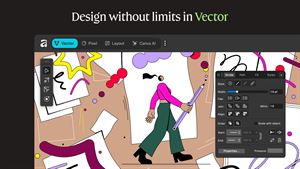
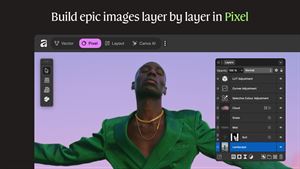
 Affinity by CanvaCanvaONE APP TO CRAFT IT ALL, FOR NO COST AT ALL. Design. Edit. Lay it out. Affinity gives you vector, pixel, and layout tools, all in the same professional-grade ap★ 4.8 27291k


 Video Editor & Maker - InShotInShot Video EditorAI video editor with music! Edit video with effects, slideshow & slow motion★ 4.8 24760k


 MX PlayerAmazon Mobile LLCPowerful video player with advanced hardware acceleration and subtitle supports★ 4.2 14336k


 VivaVideo - Video Cut & EditorQuVideo Inc. Video Editor & Video Maker AppAI Video Editor: AI Templates, Text to Video, Extract Audio, Auto Caption.★ 4.3 12268k


 YouCut - Video Editor & MakerInShot Video EditorAI Video Editor with Music, Filter, Slideshow, Effect, Merge & Trim Video.★ 4.8 8635k


 Screen Recorder - XRecorderInShot Inc.Record games with audio. Smooth, HD screen capture & Built-in video editor.★ 4.7 7662k
More by this developer


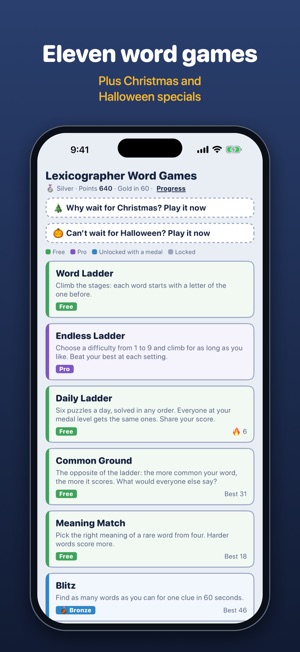
 Lexicographer: Word GamesPhilip BrahamHow far up the ladder can you climb? Lexicographer is a collection of word games built around one idea: every word starts with a letter of the one before. Start-


 Track My Trip ProPhilip BrahamTrack My Trip records your journeys as you make them — a road trip, a hike, a delivery round or just a good day out. Start a trip, put your phone away, and it q-


 Easy Password Generator ProPhilip BrahamEasy Password Generator builds passwords out of whole words joined by symbols — Grape-Timber-Wharf7 rather than x9$Kf2#p. Long enough to stand up to an offline -


 Sequence Timer and CounterPhilip BrahamBread dough, then proving, then the oven. Sequence Timer runs a chain of steps one into the next, so you set it up once and then just listen. Most timer apps gi-