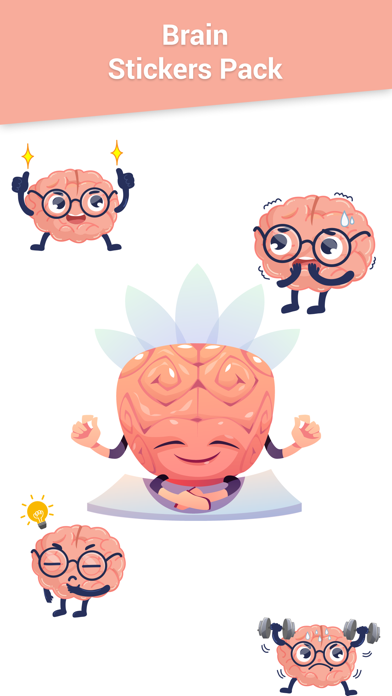
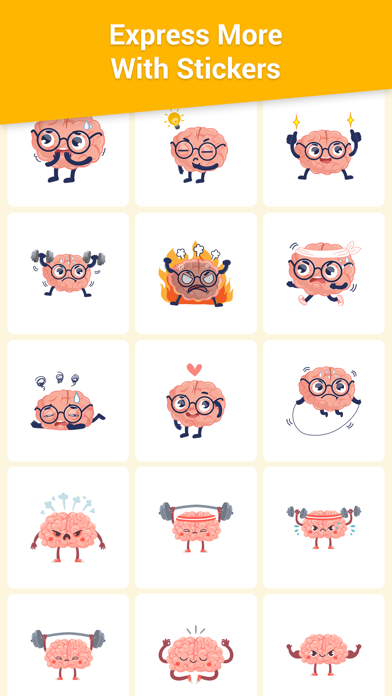
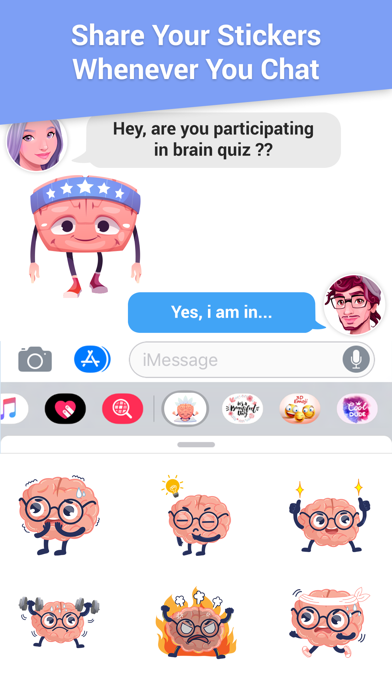
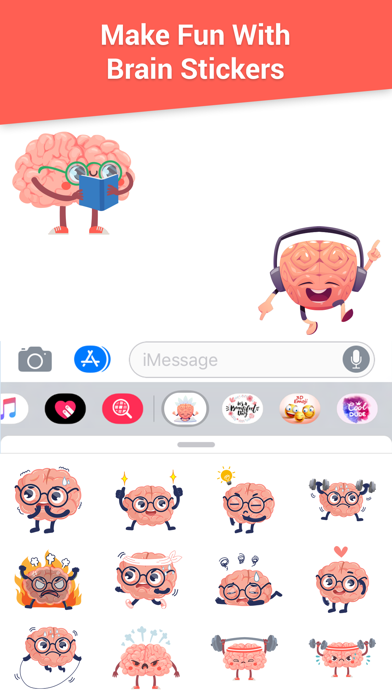
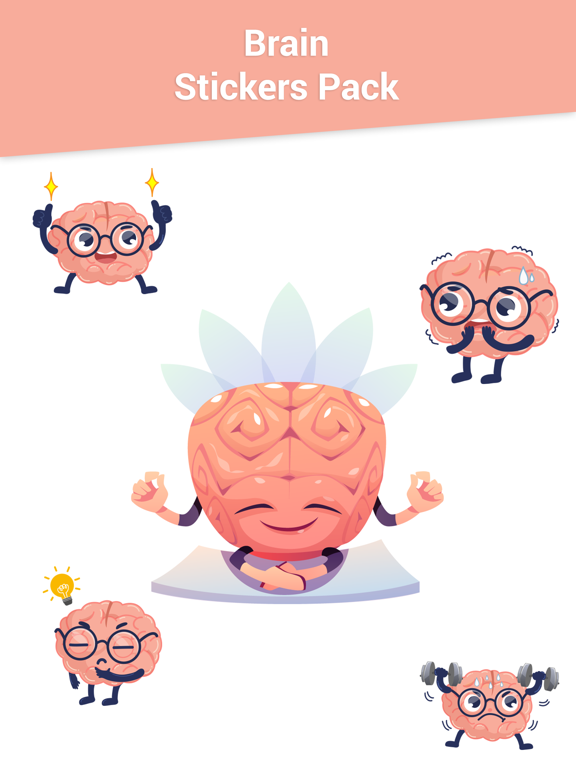
Make your chats more fun and expressive by sending creative stickers directly in iMessage. Follow these simple steps to start using your sticker pack. Open Stickers in iMessage 1 Open the Messages app on your iPhone. 2 Open an existing conversation or start a new message. 3 Tap the + button next to the message field. 4 Select Stickers from the iMessage app drawer. 5 Choose the sticker pack you installed. Send a Sticker ◦ Tap any sticker to send it instantly in the chat. ◦ The sticker will appear in the conversation like a message. Place Stickers on Messages ◦ Touch and hold a sticker. ◦ Drag and drop it onto a message bubble, image, or another sticker. ◦ Release it to place it exactly where you want. Combine Stickers with Messages ◦ You can send stickers along with text, emojis, photos, or GIFs. ◦ Stickers can be layered on messages to create reactions and fun effects. Manage Sticker Apps ◦ Tap the + button → Stickers → Edit. ◦ From here you can: ◦ Reorder sticker packs ◦ Hide unwanted packs ◦ Organize your sticker drawer Once installed, your sticker pack will automatically appear in the iMessage sticker drawer, ready to use anytime you chat.
Stickers · iPhone, iPad · $1.99