
Screenshots


About BrowserSearch: Tab Archive
Too many tabs open because you're afraid to lose them? BrowserSearch lets you close them without losing anything.
TAB ARCHIVE
Press ⌘E on any tab (or a whole set of tabs) to archive it. BrowserSearch keeps the page's title, address, your hashtags and the text on the page, then closes the tab. Weeks later, type a few words you remember, even something from the middle of the article, and the page comes back with a snippet of where it matched. Press Return to reopen it.
• Full-text search across everything you've archived, right next to your open tabs.
• Auto-archive (optional): tabs you haven't looked at in a week are archived for you. Pinned tabs, keyworded tabs and the tab you're looking at are never touched.
• Up to 2,000 pages, stored only on your Mac.
SAVED SESSIONS
Press ⌘S to save every open window, across Chrome, Safari, Brave, Edge and Vivaldi, as a named session ("Release week", "Trip planning"). Close everything, and when you need it again, pick the session and press Return: each window reopens in its browser with its tabs in order.
FIND ANY OPEN TAB
Press your shortcut from any app, type a few letters, press Return. BrowserSearch brings the right window forward with that tab selected.
• Every browser at once, grouped by browser and window, with fuzzy matching on titles and addresses.
• Stale view: tabs you haven't looked at in a week, ready to archive in two keys.
• Saved tab groups with #hashtags, pins, keywords, duplicate finder, bulk actions on marked tabs.
• Recent tabs and a previous-tab shortcut (⌃⌥⇥).
• Shortcuts and Siri actions: Find Tab, Open Tab Group, Go to Previous Tab.
• Keyboard first: every action has a key; ⌘/ shows them all.
PRIVATE
No network access, no analytics, no account. The archive and sessions are files on your Mac that you can clear anytime in Settings.
BrowserSearch only reads browsers that are already open; it never launches one.
AVALW Coverage
Not yet mentioned in AVALW articles.
Similar apps


 MyJio: For Everything JioJio Platforms LimitedTrue 5G, recharges, payments & UPI, music & movies, backup, games, news & more.★ 4.4 27428k


 Microsoft WordMicrosoft CorporationThis application requires a qualifying Microsoft 365 subscription. Microsoft 365 includes premium Word, Excel, and PowerPoint apps, 1 TB cloud storage in OneDri★ 4.8 17535k
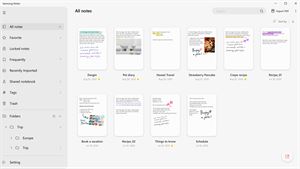
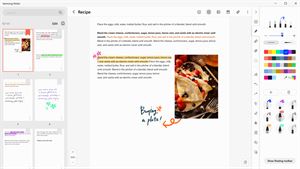

 Samsung NotesSamsung Electronics Co, Ltd.(Samsung Notes is optimized for Samsung Galaxy Books. Other computers may have issues running it.) "Samsung Notes allows you to use the enhanced S Pen to write ★ 4.8 15228k

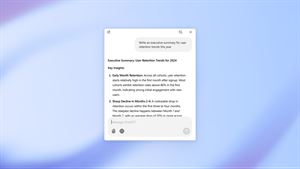

 ChatGPT ClassicOpenAIThe official ChatGPT desktop app brings you the newest model improvements from OpenAI. Do more on your PC with ChatGPT: · Instant answers—Use the [Alt + Space] ★ 4.8 11034k


 ChatGPTOpenAI OpCo, LLCIntroducing ChatGPT for iOS: OpenAI’s latest advancements at your fingertips. This official app is free, syncs your history across devices, and brings you the l★ 4.8 11034k


 Microsoft OutlookMicrosoft CorporationOutlook helps you stay connected and organized at the office and at home with easy access to emails, files, calendar events, and contacts across all your accoun★ 4.3 10673k


 Turbo VPN: Unlimited VPN ProxyINNOVATIVE CONNECTING PTE.LIMITEDDo you want online security and privacy while browsing? Turbo VPN now provides the fastest, reliable and encrypted network. With Turbo VPN, you can get the safe★ 4.7 10243k



 Microsoft ExcelMicrosoft CorporationThis application requires a qualifying Microsoft 365 subscription. Microsoft 365 includes premium Word, Excel, and PowerPoint apps, 1 TB cloud storage in OneDri★ 4.8 9702k
More by this developer


 Paste-MeGiridhar BhujangaPaste Me remembers everything you copy so you never lose a snippet again. Press ⇧⌘V anywhere to open your clipboard history. Type to search, then click an item -


 Mood Tracker: Feelings JournalGiridhar BhujangaMake space to notice how you feel. Mood Tracker is a personal journal for iPhone and iPad. Save a mood in one tap, then add as much or as little context as you ★ 5.0 1