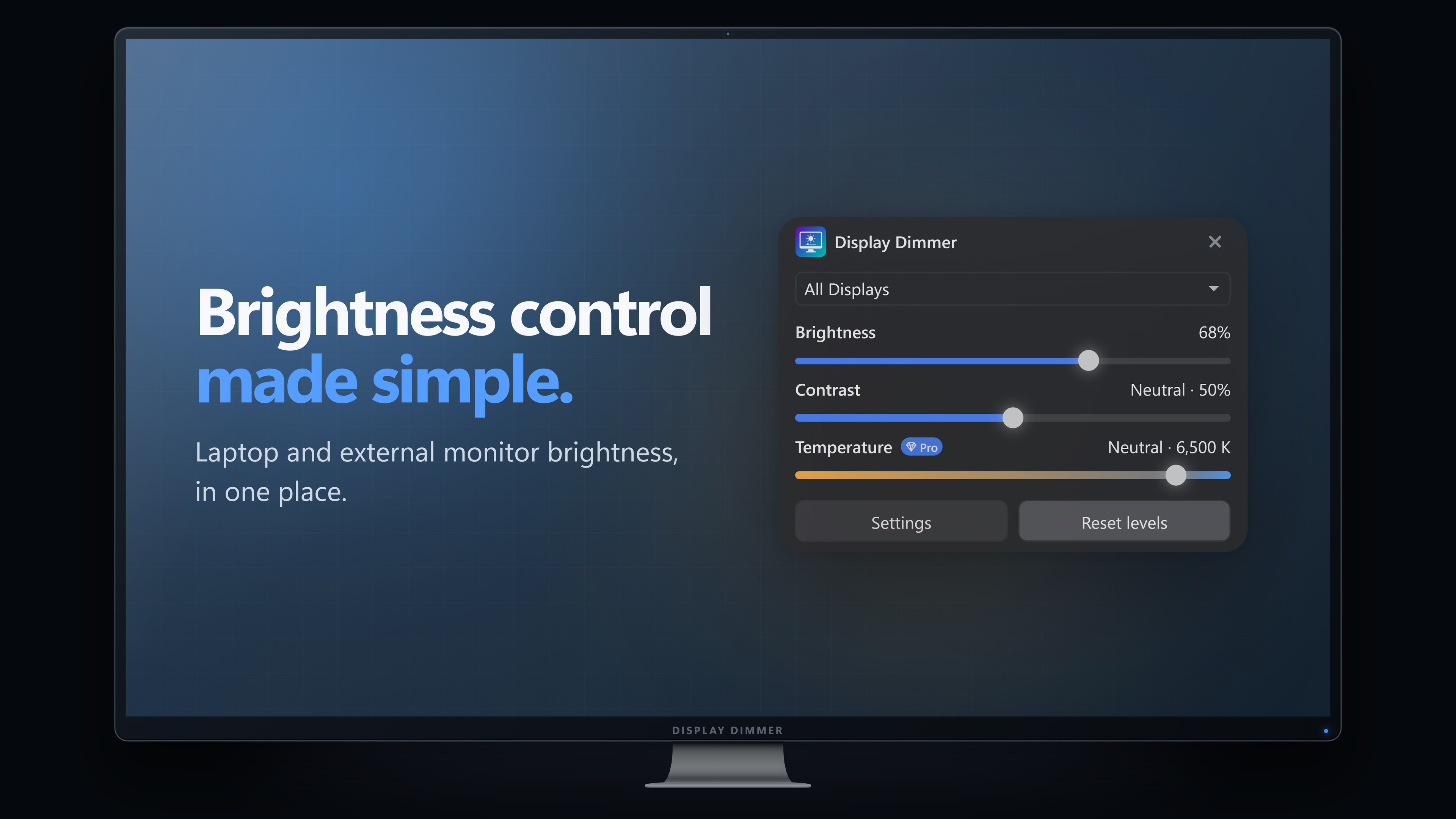
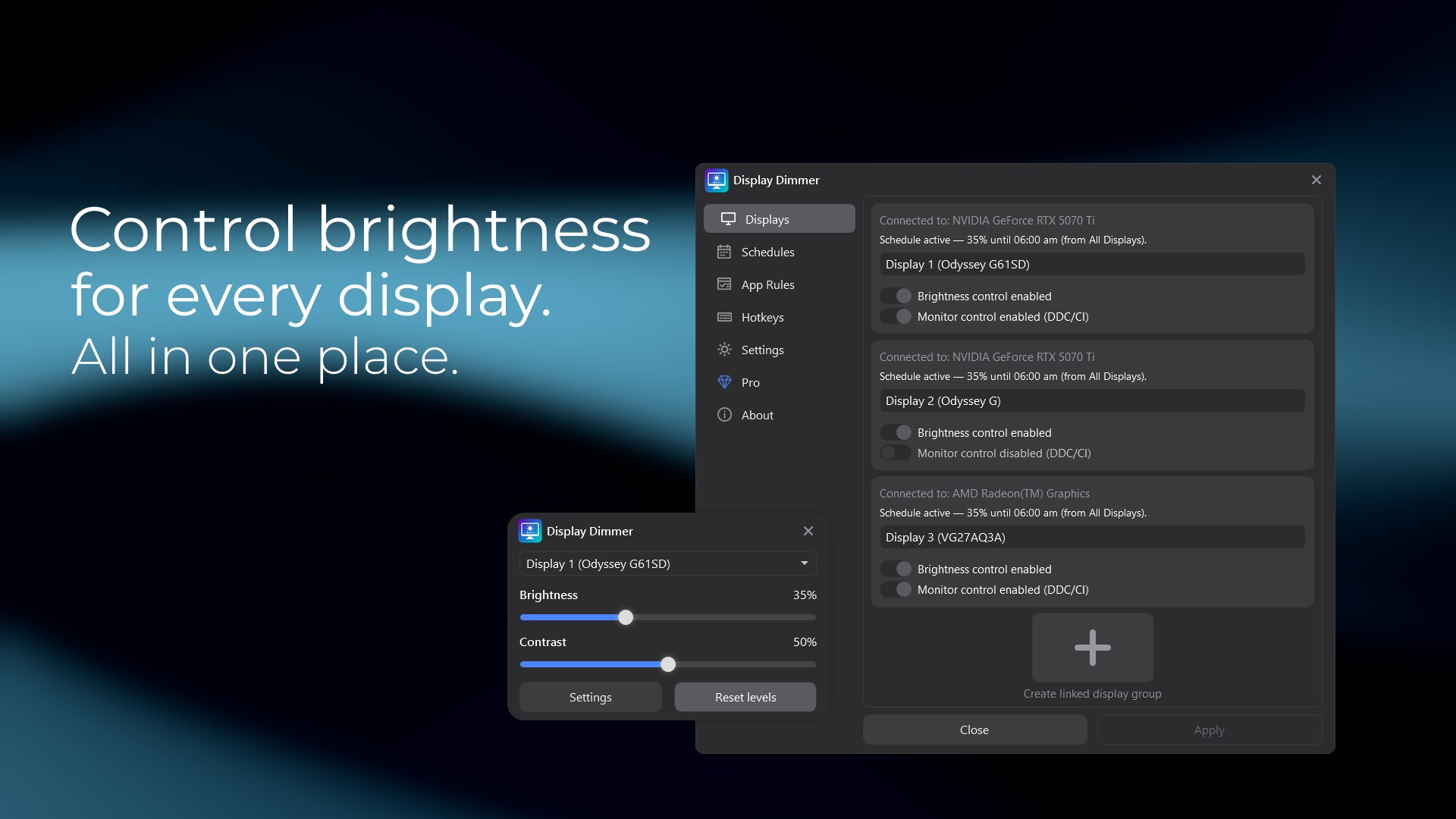
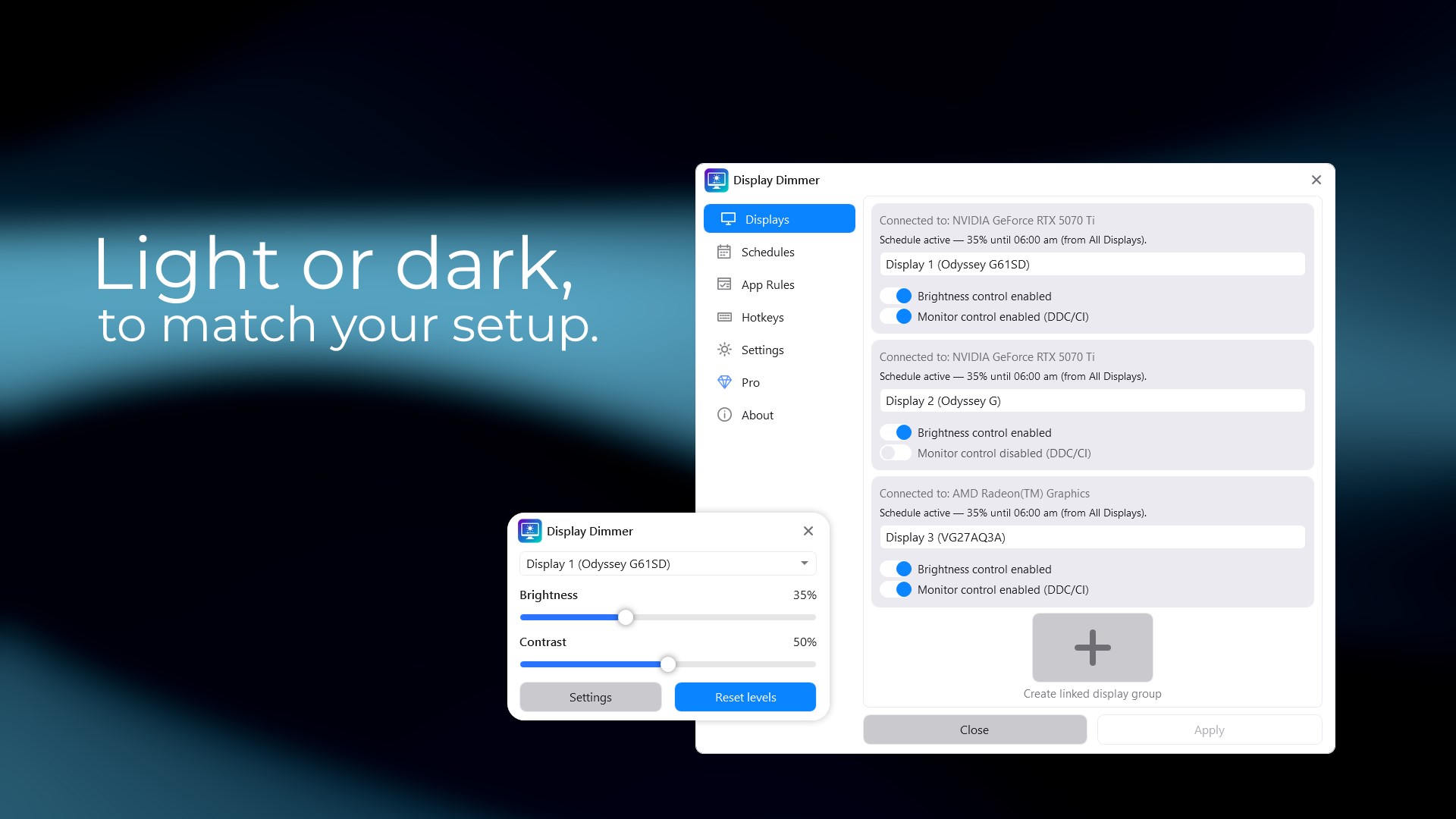
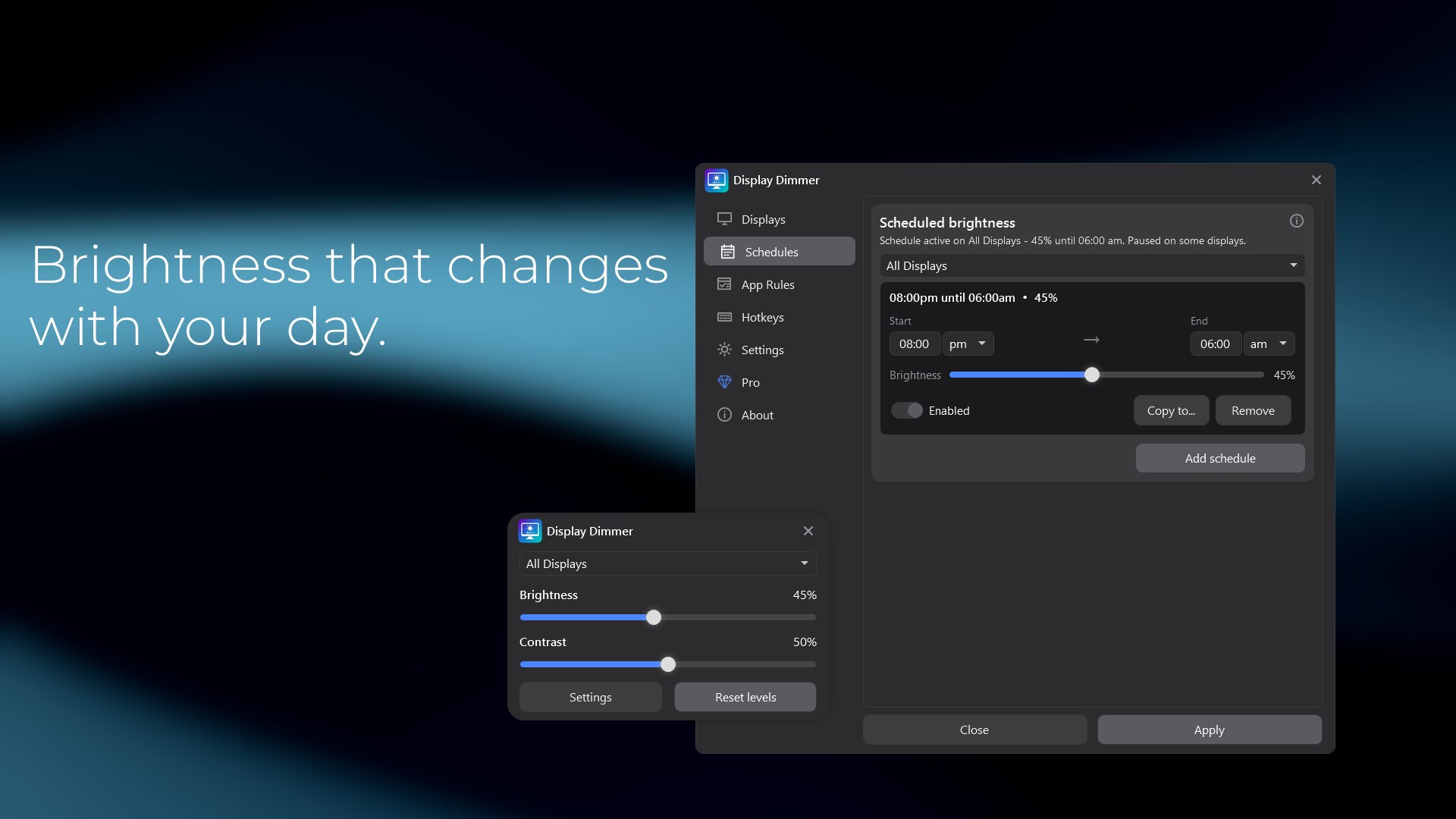
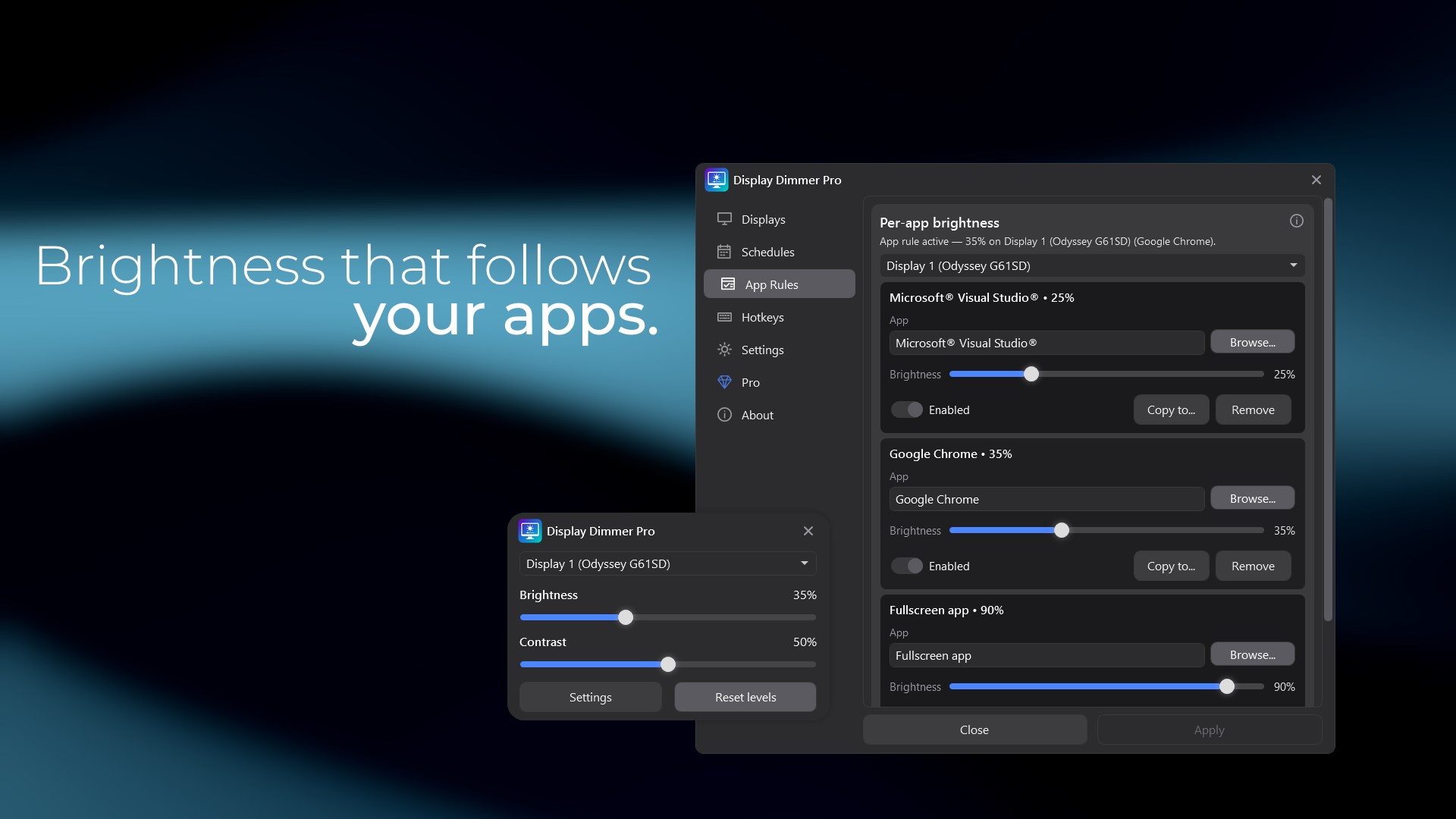
Quick, reliable monitor brightness control—with blue light filtering in Pro. Display Dimmer puts your monitor controls in one place. Adjust brightness and contrast without reaching for physical buttons or navigating built-in monitor menus. Want warmer screen colors? Display Dimmer Pro adds an adjustable blue light filter. Reduce blue light, fine-tune each display’s color temperature, and automate your preferred settings with schedules and app rules. For supported external monitors, Display Dimmer uses DDC/CI to change hardware brightness directly. If hardware control is unavailable or unreliable, it can use software dimming instead. Set displays individually, adjust them together, create automatic rules, and use global hotkeys for the controls you need most. Display Dimmer also handles common Windows display changes such as docking, reconnecting monitors, sleep and resume, and switching HDR modes. Key features: • Adjust brightness and contrast for external monitors • Reduce blue light with adjustable warmer screen colors using Display Dimmer Pro • Control displays individually or together • Keep relative brightness levels when adjusting multiple displays • Create brightness schedules for different times of day • Apply brightness automatically when specific apps or fullscreen apps are active • Use global hotkeys for brightness, contrast, temperature, and display actions • Use supported physical brightness keys • Schedule blue light filtering or apply different color temperatures for specific apps with Pro • Create linked display groups with Pro • Control displays from PowerShell, scripts, Task Scheduler, Stream Deck, Arduino, and other local tools with Pro • Choose which controls appear in the main window • Start with Windows and reapply your settings after launch • Run quietly from the system tray • Choose from system, light, dark, and additional Pro themes Monitor control: Display Dimmer uses DDC/CI when your monitor and connection support it. You can disable DDC/CI for individual displays when a particular monitor, dock, adapter, or display mode works better with software dimming. Automation: Create schedules for different parts of your day or use app rules to apply specific levels while an app is active. Fullscreen rules are useful for games, videos, presentations, and focused work. With Pro, you can also automate blue light filtering and color temperature—for example, choosing warmer colors in the evening or different settings for specific apps. When automation ends, Display Dimmer restores your previous manual levels so your setup remains predictable. Display Dimmer Pro: The free version includes core brightness control, basic automation, and basic hotkey support. Display Dimmer Pro is an optional one-time upgrade that adds an adjustable blue light filter and per-display color temperature control. Choose warmer colors to reduce blue light, or select neutral and cooler tones to suit your preference. Automate color temperature with schedules and app rules, and adjust it with global hotkeys. Approximate Kelvin readouts help you fine-tune your settings. Pro also unlocks more schedules, app rules, and hotkeys; per-display automation and hotkey targeting; linked display groups; local automation and command-line access; and every Pro theme. Try the blue light filter and color temperature controls free for 30 minutes. One-time purchase. No subscription. Notes: • DDC/CI support depends on your monitor, cable, dock, adapter, GPU, and display settings • Some monitors require DDC/CI to be enabled in their built-in menu • Some displays do not support hardware brightness control • Software dimming is available when hardware control cannot be used • Some features require Display Dimmer Pro
Utilities · Windows · Free
Rating: 4.8 out of 5, based on 70 user ratings.