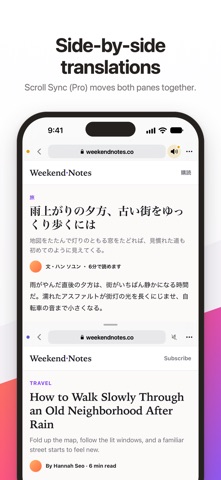
Open two websites on one screen, top and bottom or side by side. Each pane browses on its own, and sound plays from one pane only. ■ A two-pane browser - Each pane has its own address bar for addresses or searches, and its own Back. - Split top and bottom, or side by side. - Drag the bar in the middle and it snaps to 1/3, 1/2 or 2/3. The button in the middle of the handle swaps the two panes. - When you open the App again, both panes return to the pages you were on. - Scroll down a page and that pane's address bar hides to give you more room. ■ Sound from one pane - Only one pane plays sound; video in the other keeps playing silently. - Tap the speaker in an address bar to move the sound to that pane. ■ On iPad - See two sites side by side on the big screen. It starts side by side, and you can switch to top and bottom. - A wide pane opens the desktop version of a site; a narrow pane opens the mobile version. - Hold it in any orientation, or open it next to another app; the two panes fit the window size. ■ On iPhone Duo - Half-fold it and the split lines up with the fold. - Folded, the outer screen shows one pane at a time; the button at the bottom switches panes. - Video in the hidden pane keeps playing silently. ■ Start page and sets - Open your favorites and suggested sites straight from the start page. - A set saves the two sites you have open so you can open both at once. One set is free. - No sign-up. Favorites, sets and browsing history are stored only on this device. - In the free version, ads appear in a strip at the top of the screen and on the start page, never over web pages. ■ Split Browser Pro - No ads - Unlimited sets - Desktop Mode: request the desktop site in each pane, even a narrow one on iPad - Block Web Ads & Trackers: ad and tracking scripts on web pages are blocked on your device - Auto Refresh: reload each pane every 30 seconds to 15 minutes - Scroll Sync: scroll one pane and the other follows to the same position Choose a Monthly or Yearly auto-renewing subscription, or a One-time Purchase (no renewal). The benefits are the same whichever you choose. Payment is charged to your Apple Account when you confirm the purchase. A subscription renews automatically unless you cancel at least 24 hours before the end of the current period. Manage or cancel it in the Settings app > Apple Account > Subscriptions. Terms of Use (EULA): https://www.apple.com/legal/internet-services/itunes/dev/stdeula/ Privacy Policy: https://ssndevstudio.com/splitbrowser/privacy?lang=en
Utilities · iPhone, iPad · Free