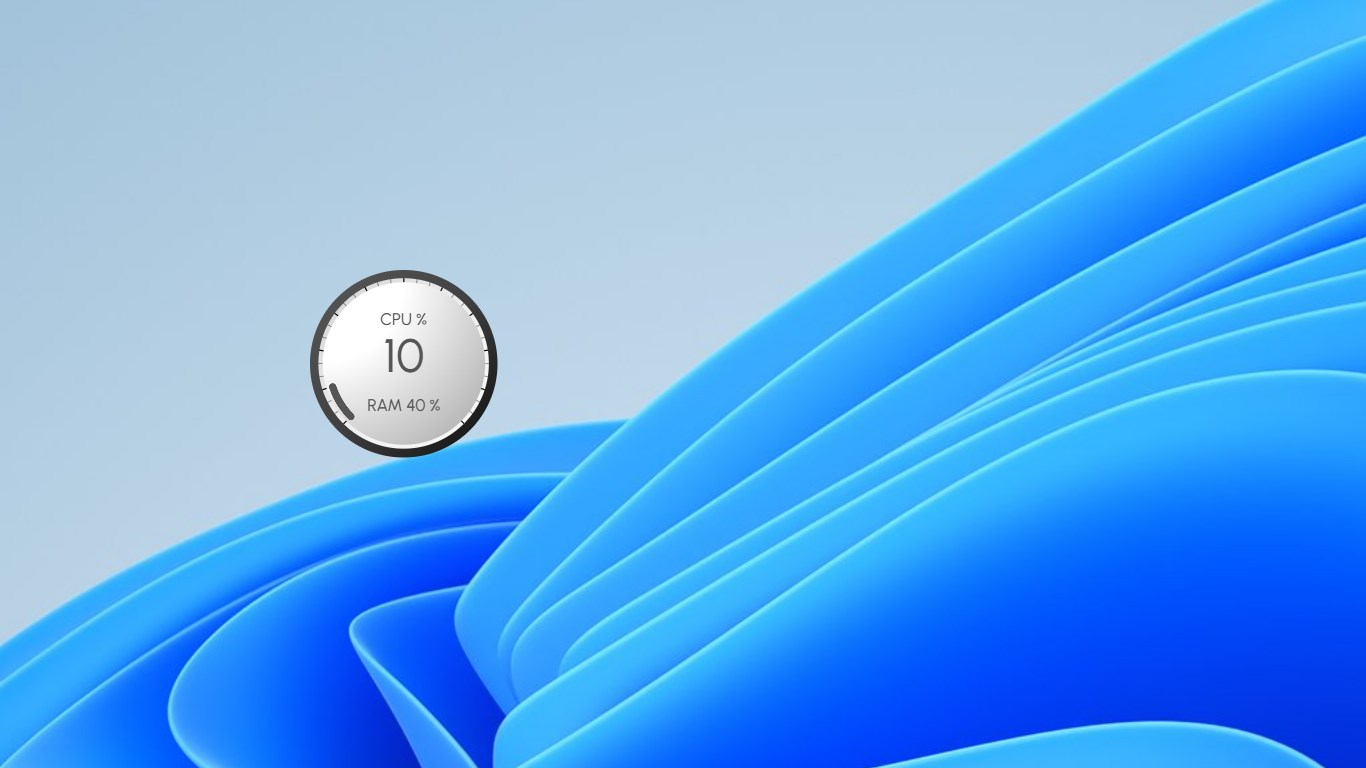
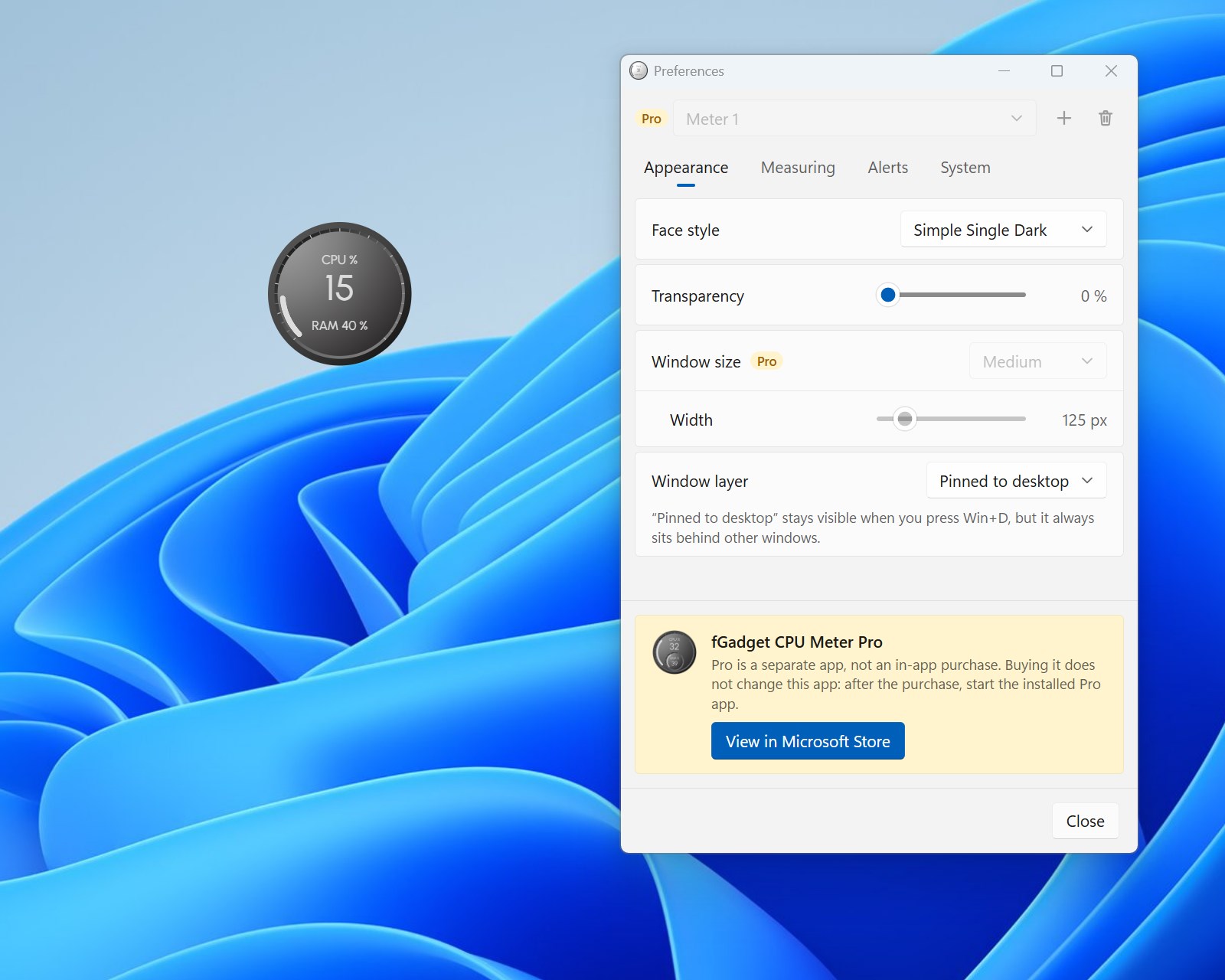
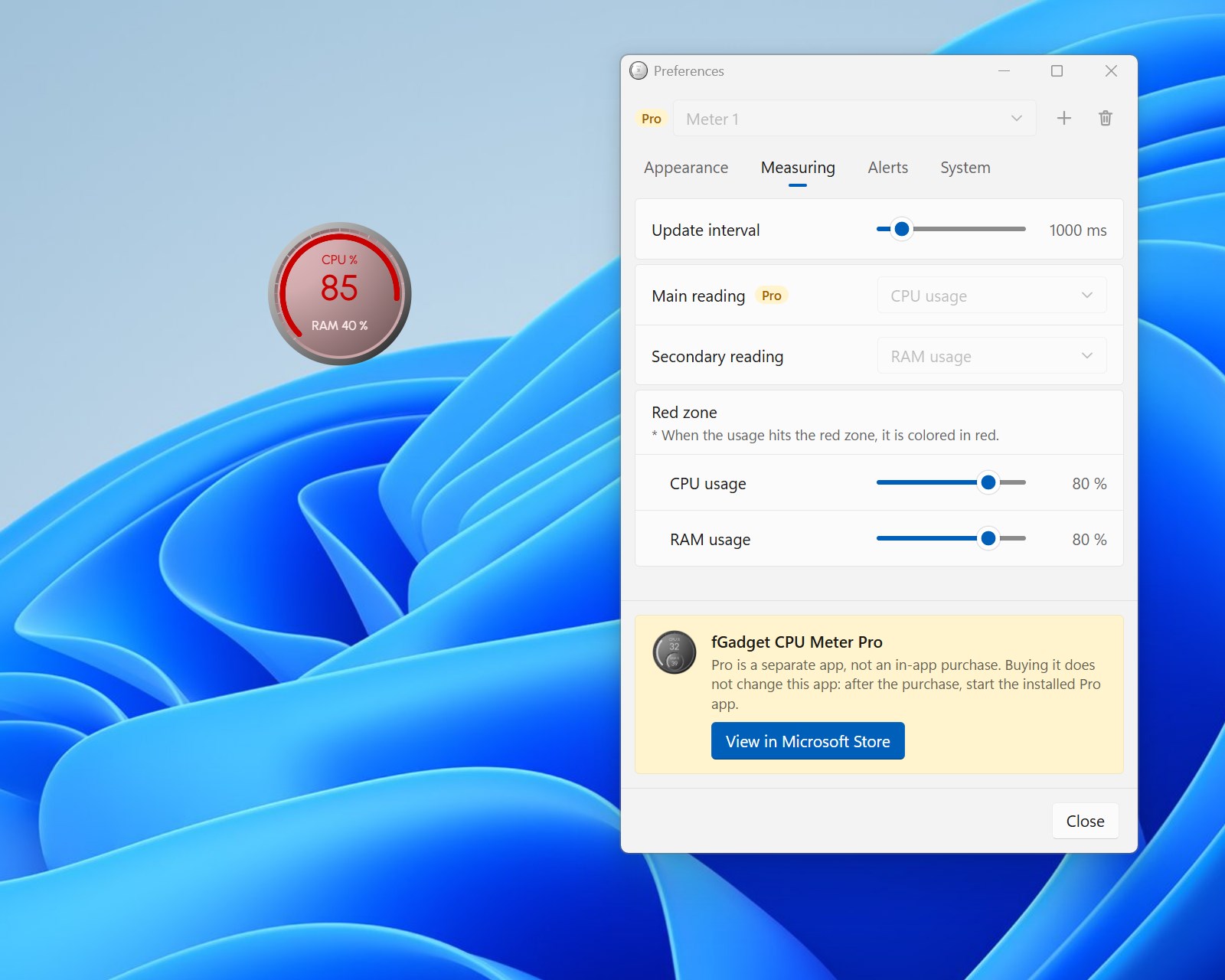
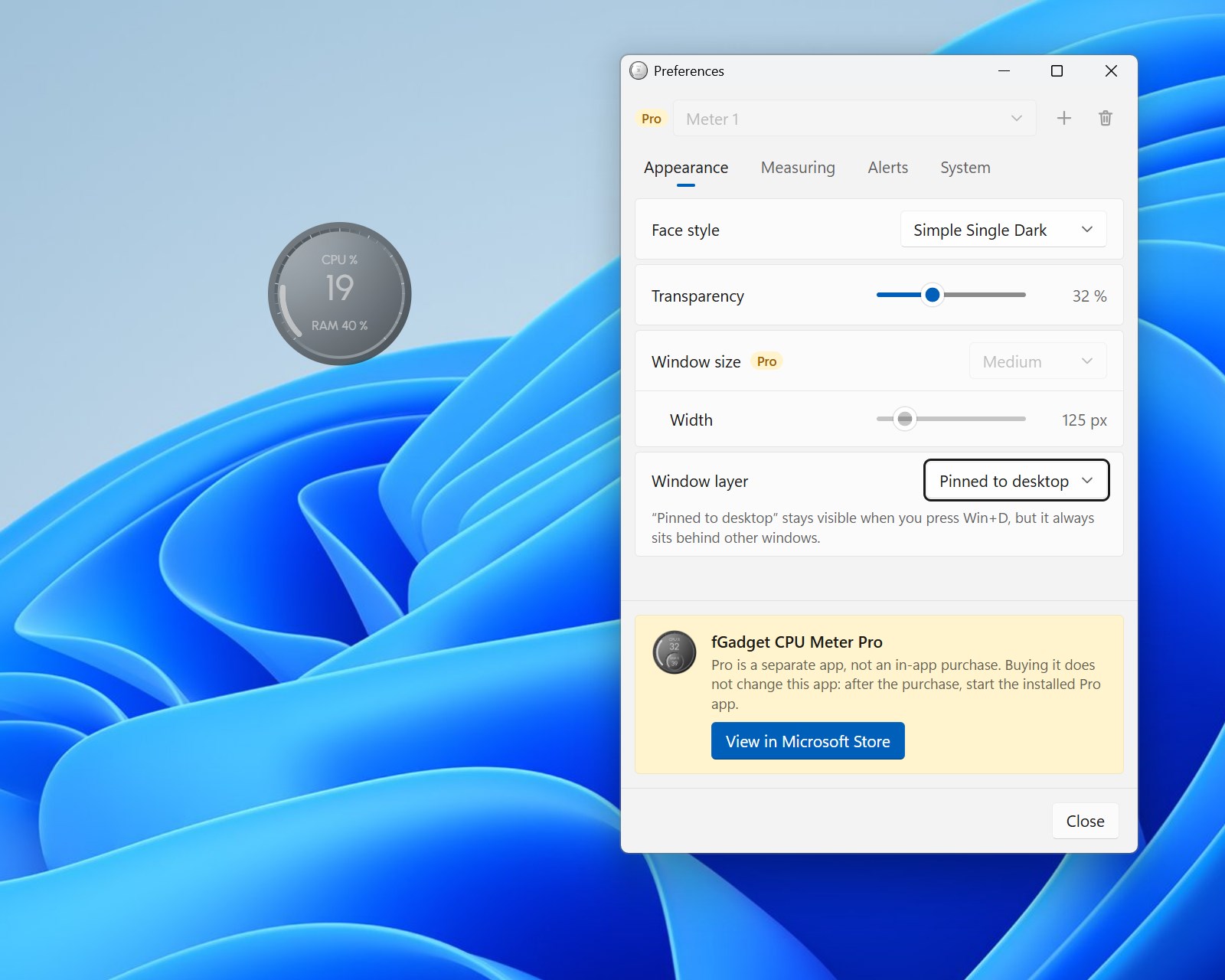
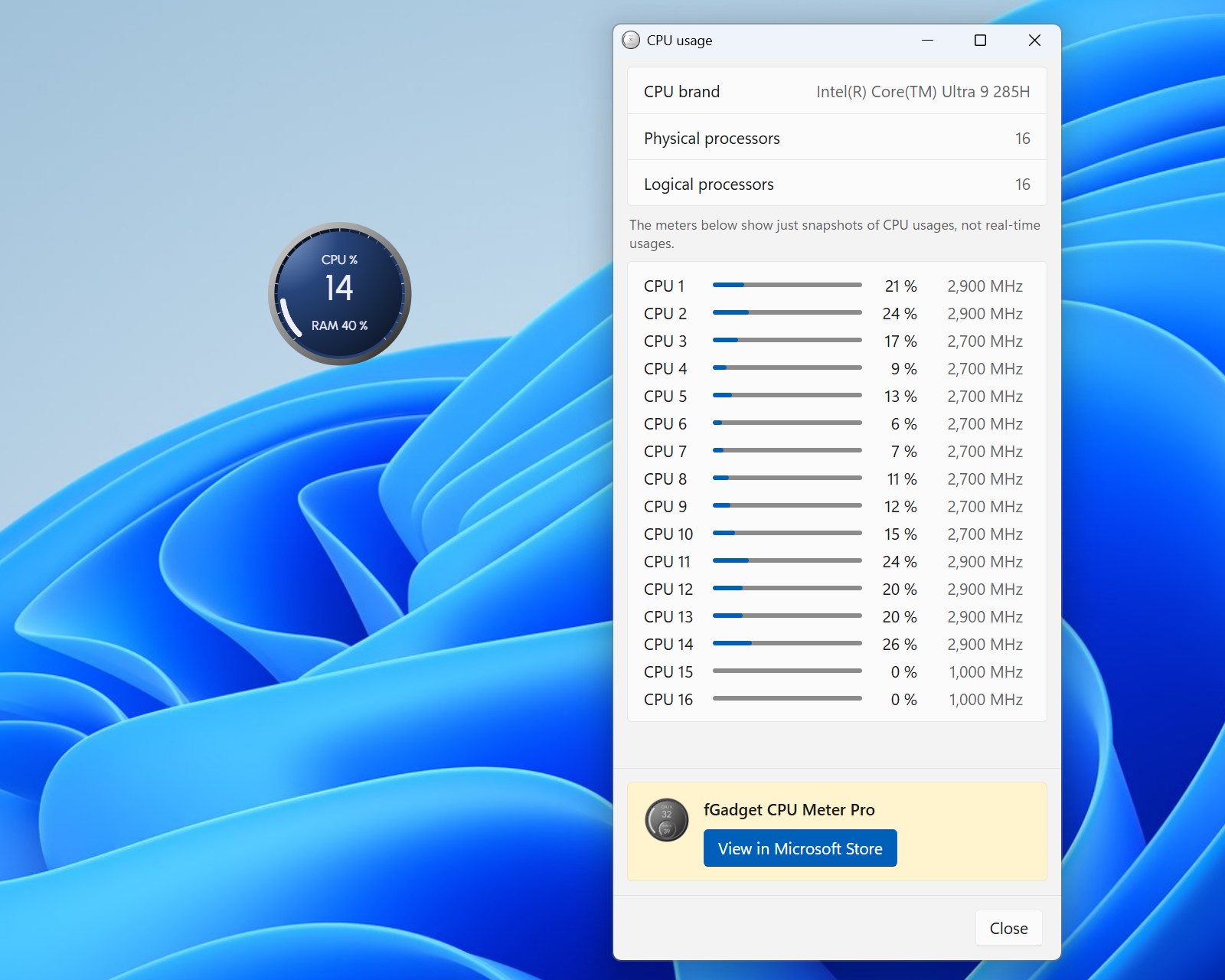
Remember desktop gadgets? This is that idea, rebuilt for Windows 11. fGadget CPU Meter Lite sits on your desktop as an analog gauge and shows you how hard your PC is working — no window to open, no tab to switch to. You glance at it the way you glance at a clock. ONE DIAL, TWO NUMBERS CPU usage sweeps around the large arc and is printed big in the middle. RAM usage sits just below it. That is the whole idea, and you can read it from across the room. Set the red zone for each of them, anywhere from 1 to 100%. Reach it, and the arc and the figure turn red — so you notice that something is eating your PC without reading a single word. FOUR FACES Simple Single, in Light, Dark, Navy and Pink. Pick the one that settles into your wallpaper, or the one that stands out against it. WHERE IT SITS IS UP TO YOU Drag the gauge anywhere on your desktop and it comes back to the same spot the next time you start. Fade it back with up to 90% transparency. Then decide how it sits: normal, always on top, or pinned to the desktop, where it stays in sight when you press Win+D — the way the gadgets you remember used to. A CLOSER LOOK WHEN YOU WANT ONE Right-click the gauge for two more windows. CPU usage names your processor, counts its physical and logical processors, and gives every logical processor a bar of its own. Process monitor lists what is running, sorted by name, CPU or RAM, so you can see what the dial is reacting to. Both show a snapshot taken the moment you open them. LIGHT ON THE MACHINE IT MEASURES Native code, with no runtime to install. The gauge is one small window that measures once per interval — you choose between 0.5 and 5 seconds — and then gets out of the way of the work you are actually doing. YOURS, AND ONLY YOURS No account. No ads. No tracking. Nothing is sent anywhere: every reading is taken on your own PC, and your settings live in a file on it. The app needs no internet connection at all. ALSO INSIDE • Starts with Windows — on from the first launch, and switched off in Preferences or in Windows Startup settings whenever you like • Hover the gauge for the quick menu, right-click it for everything else • Nine display languages: English, Japanese, German, Spanish, French, Korean, Portuguese, Simplified Chinese and Traditional Chinese • Every window follows Windows dark mode on its own NEW IN 2.0 Version 2.0 is a complete rebuild. "Pinned to desktop" is new, the app now speaks nine languages, every window has been redesigned to match Windows 11, and three long-standing complaints are fixed: auto-start that never ran in the Store version, the gauge turning into a black box, and the dial not matching its window on a second display. ABOUT fGadget CPU Meter PRO — PLEASE READ BEFORE YOU BUY IT There is a bigger app in the same family, fGadget CPU Meter Pro. It is a SEPARATE APP with its own page in the Store. • It is not an in-app purchase, and not an upgrade to this app. • Buying it does not change this app. Nothing unlocks here, and the settings labelled "Pro" in this app stay switched off. • After you buy it, install and start fGadget CPU Meter Pro. It arrives as an app of its own, with its own icon in the Start menu. Keep this one next to it or uninstall it — either is fine. Pro adds up to 8 gauges at once, 14 faces, GPU, GPU memory and disk readings, a dial you can resize from 64 to 512 pixels, notifications that name the process slowing you down, and a process monitor that keeps updating. This app itself has nothing to unlock and nothing to pay for. If what you want is CPU and RAM on your desktop, you already have all of it here.
Productivity · Windows · Free
Rating: 5.0 out of 5, based on 5 user ratings.