
Screenshots


About Left Right - File Compare
Left Right is a native macOS file compare and merge app. It shows what differs between two files or folders and lets you bring across only the changes you want.
■ Compare two files side by side
- Two panes with corresponding lines aligned and synchronized scrolling
- Line numbers, difference markers (+ − ~), difference coloring, in-line highlights, a center difference gutter, and difference marks on the scroll bar
- Copy a difference from left to right or right to left, hunk by hunk. Also available from the keyboard, and every copy can be undone
- Type, delete, cut, copy, paste, undo/redo, and find in pane (Cmd-F)
- Ignore whitespace, letter case, blank lines, and Unicode normalization differences. Presets are available, and "Custom" is shown when the current mix does not match one
- Text encoding and line endings are detected automatically and preserved on save. When the two sides disagree, Left Right reports it separately from content differences
- Convert either text pane to LF, CRLF or CR with undo/redo. Save As writes edited text to another file so you can keep comparing the saved file
- If a file changes on disk after the comparison starts, you are told before saving
- Recent comparisons are remembered as bookmarks. An expired bookmark is kept in gray with a "Grant Access…" button rather than being dropped
■ Compare folders
- Recursive scanning with a tree view (hierarchy or list)
- Compare modes: Smart, Contents, Metadata, Bytes. Five filters plus a default ignore list and regular-expression rules
- Copy items that exist only on one side. Existing items are moved to the Trash before an overwrite
- Copying can follow the Finder (default), merge, or replace
■ Merge three versions
- Combine left and right that diverged from a common base. Left, base, and right on top, the result below
- Separate changes merge automatically; overlapping changes stay in the result as git-compatible conflict markers
- Resolve each conflict with "Use Left", "Use Right", "Use Both", or by hand
■ Compare tables, binaries and images
- CSV / TSV and .xlsx / .ods / .numbers side by side, showing added, removed, and changed rows and which columns differ. Align columns by the header row and match rows by a key column
- Compare supported password-protected .xlsx / .xlsm / .ods files by entering their password. Passwords are not stored, and decrypted contents are not written to disk
- Binary comparison in hexadecimal at the same offsets, with a byte map and entropy strip on each side and byte classes in different colors
- Image comparison with six views (Side by Side, Overlay, Slider, Difference, Blink, Heat Map) plus a threshold. Differing pixels are grouped into numbered regions
- Export or copy a patch as Unified Diff with three lines of context
■ Getting around
- Select two items in the Finder and open the comparison from the Services menu ("Compare with Left Right"). Files or folders both work; anything other than exactly two items is refused
- Callable from git difftool / git mergetool. Help → "Git Integration…" has commands you can paste. Help also explains how to install the bundled Terminal command and Finder Quick Action
- Settings (Cmd-,) cover defaults for new comparisons, appearance (window colors, difference colors, syntax coloring), and keyboard shortcuts
- English and Japanese, and light and dark appearances, follow the system
- macOS 27 or later. Runs in the App Sandbox
■ No network, no collection
- The app does not communicate over the network (it has no network entitlement)
- No account is required, and no usage analytics or data collection
- It reaches only the files and folders you open or choose
- Text editing, hunk merges, and the three-way result do not touch the disk until you save. Folder merge changes the disk as it runs (existing items are moved to the Trash before an overwrite)
- File contents are never written to logs
AVALW Coverage
Not yet mentioned in AVALW articles.
Similar apps


 MyJio: For Everything JioJio Platforms LimitedTrue 5G, recharges, payments & UPI, music & movies, backup, games, news & more.★ 4.4 27428k


 Microsoft WordMicrosoft CorporationThis application requires a qualifying Microsoft 365 subscription. Microsoft 365 includes premium Word, Excel, and PowerPoint apps, 1 TB cloud storage in OneDri★ 4.8 17535k
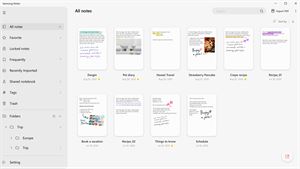
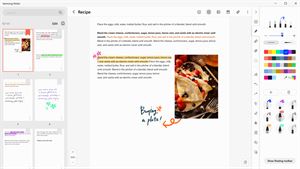
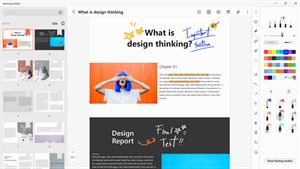
 Samsung NotesSamsung Electronics Co, Ltd.(Samsung Notes is optimized for Samsung Galaxy Books. Other computers may have issues running it.) "Samsung Notes allows you to use the enhanced S Pen to write ★ 4.8 15228k

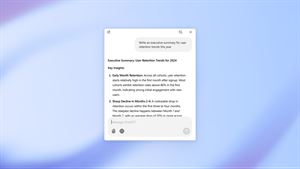
 ChatGPT ClassicOpenAIThe official ChatGPT desktop app brings you the newest model improvements from OpenAI. Do more on your PC with ChatGPT: · Instant answers—Use the [Alt + Space] ★ 4.8 11034k


 ChatGPTOpenAI OpCo, LLCIntroducing ChatGPT for iOS: OpenAI’s latest advancements at your fingertips. This official app is free, syncs your history across devices, and brings you the l★ 4.8 11034k


 Microsoft OutlookMicrosoft CorporationOutlook helps you stay connected and organized at the office and at home with easy access to emails, files, calendar events, and contacts across all your accoun★ 4.3 10673k


 Turbo VPN: Unlimited VPN ProxyINNOVATIVE CONNECTING PTE.LIMITEDDo you want online security and privacy while browsing? Turbo VPN now provides the fastest, reliable and encrypted network. With Turbo VPN, you can get the safe★ 4.7 10243k


 Microsoft ExcelMicrosoft CorporationThis application requires a qualifying Microsoft 365 subscription. Microsoft 365 includes premium Word, Excel, and PowerPoint apps, 1 TB cloud storage in OneDri★ 4.8 9702k
More by this developer


 PrintAdjustShinichi NanbuPrintAdjust turns images into a PDF and lets you make the print margins wider or narrower, on iPhone and iPad. ■ Images to PDF - Pick images from your photo lib-


 DeckroomShinichi NanbuDeckroom is a native macOS utility for the themes, typography and languages inside PowerPoint files. ■ The screen PowerPoint for Mac doesn't have - On Windows, -


 Flash PixelShinichi NanbuFlash Pixel is a native pixel-art editor for Mac, iPad and iPhone with a specialty: it reads and writes the classic icon formats of the Windows and Mac past. ■ -


 Flash Log – Estimate & TrackShinichi NanbuFlash Log is an app for handling your to-dos simply, so you can move the one in front of you forward. Today's screen shows only today. Write it down, start it, ★ 5.0 1