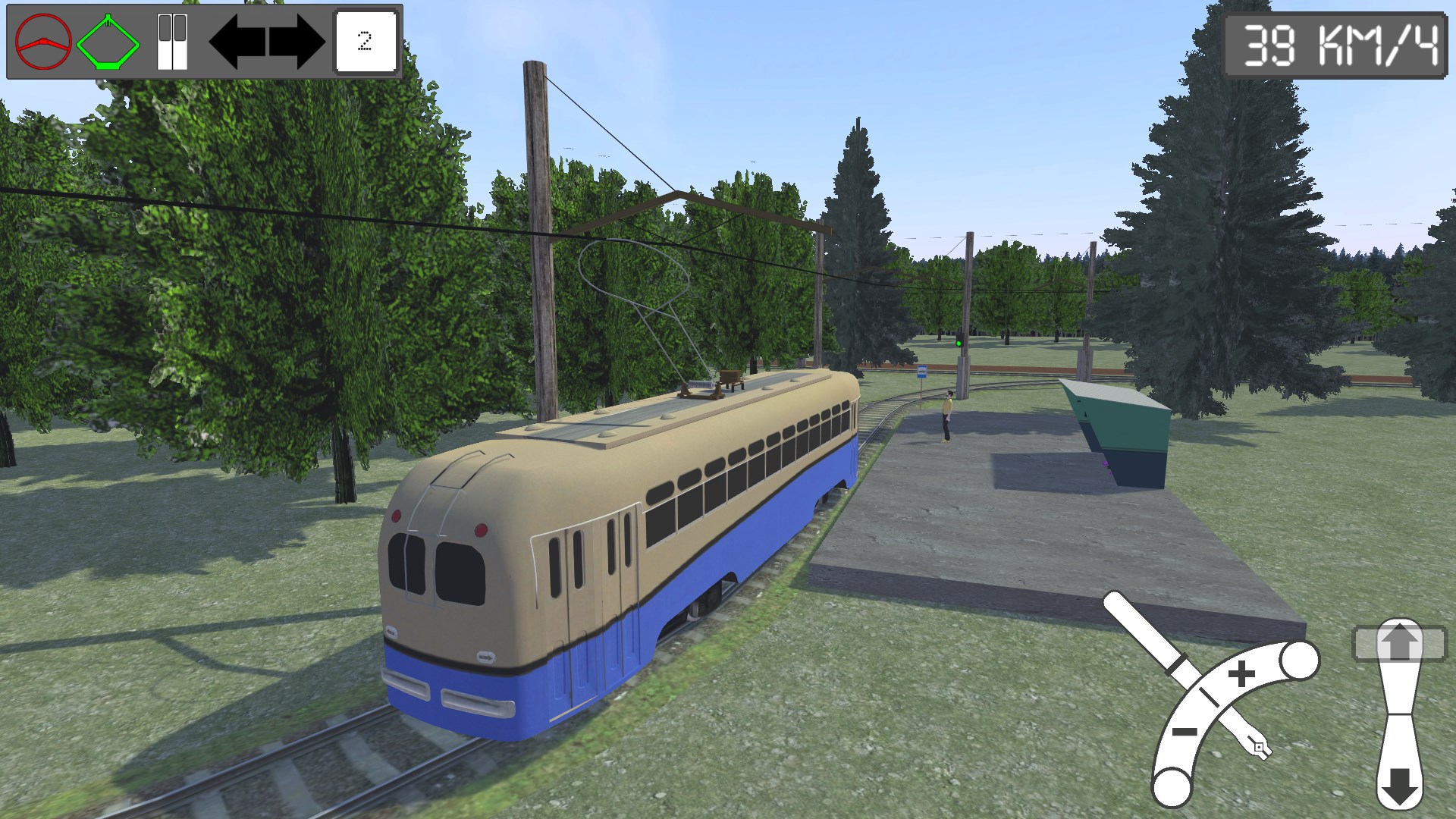
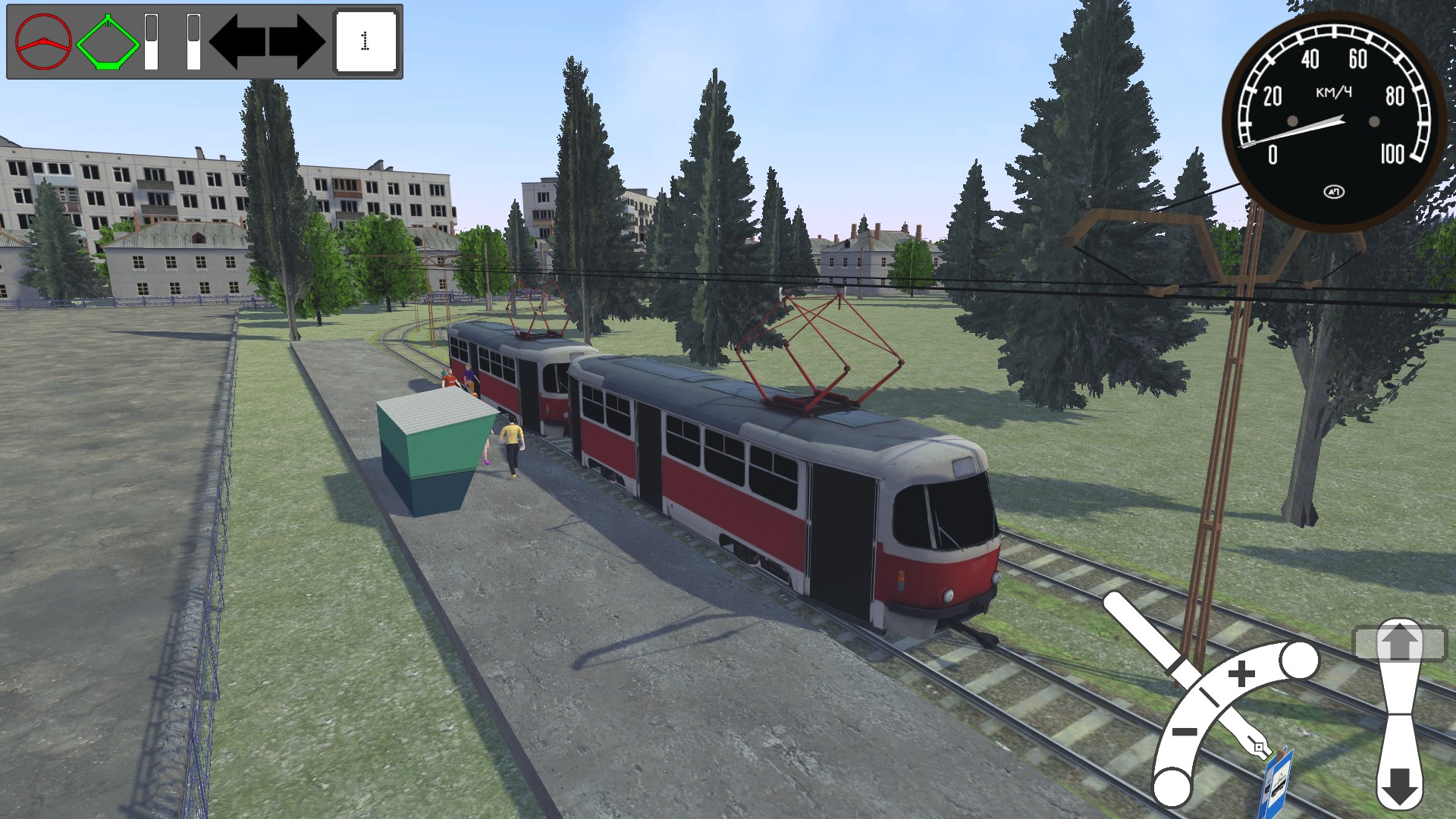
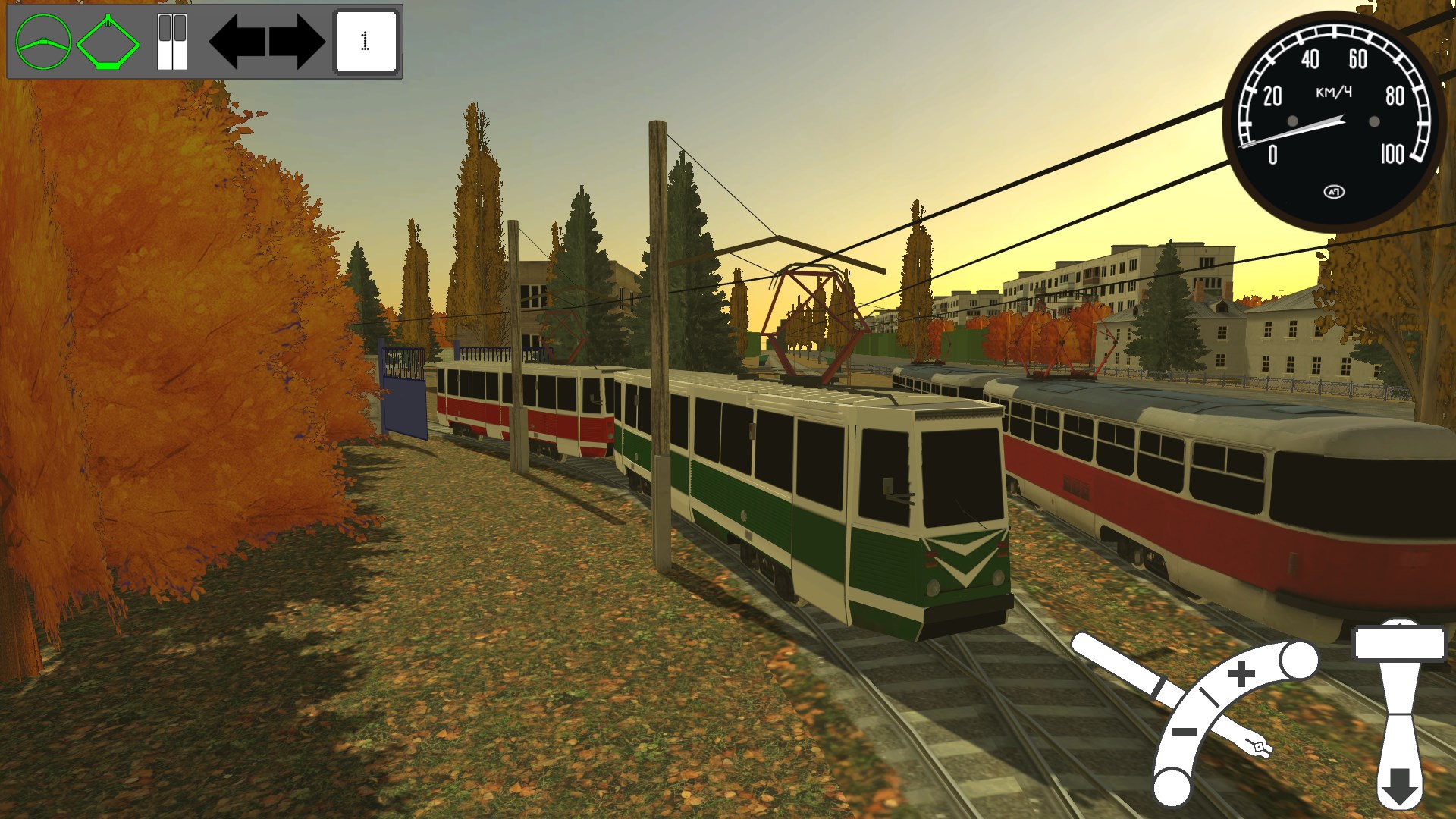
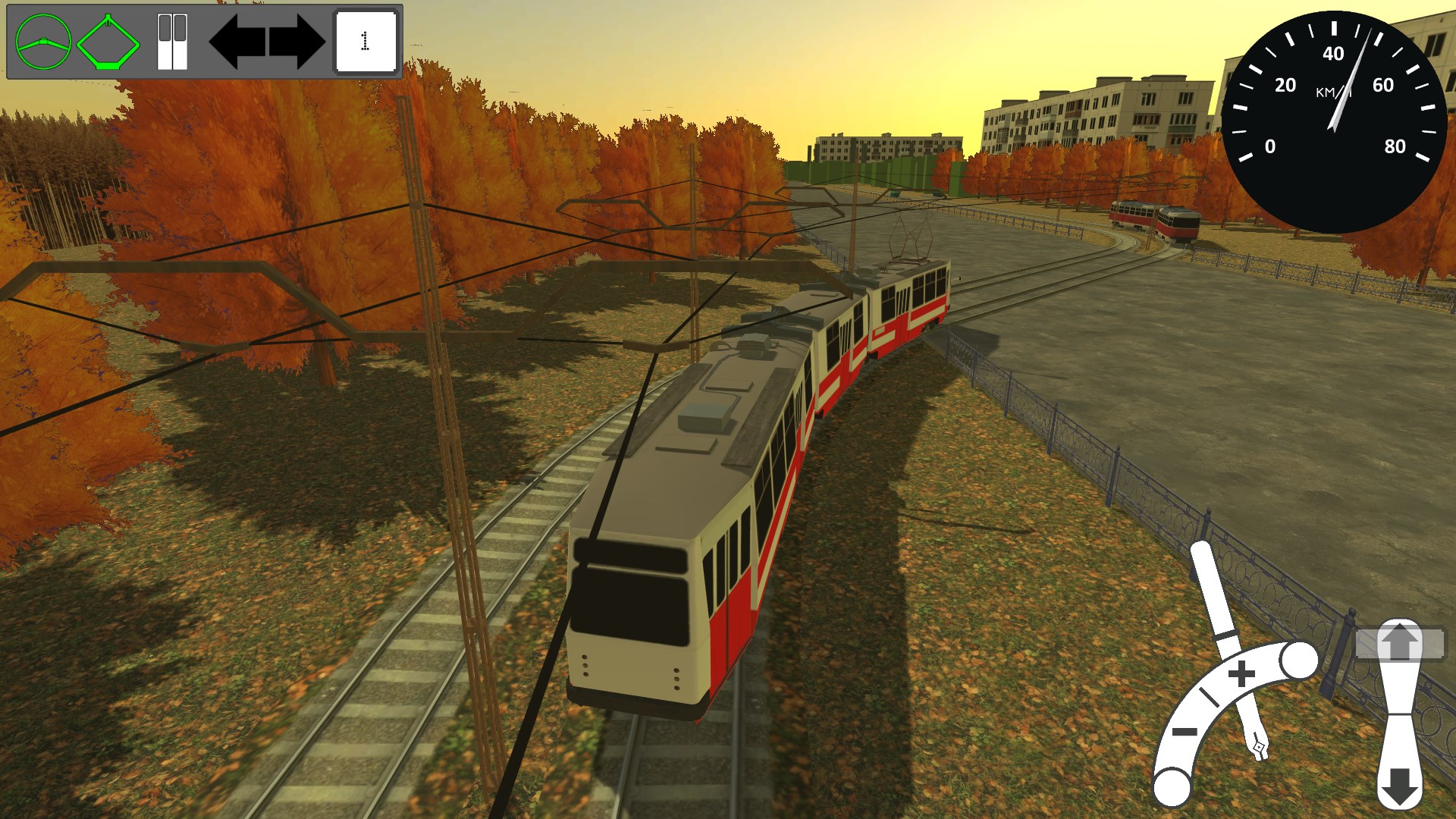
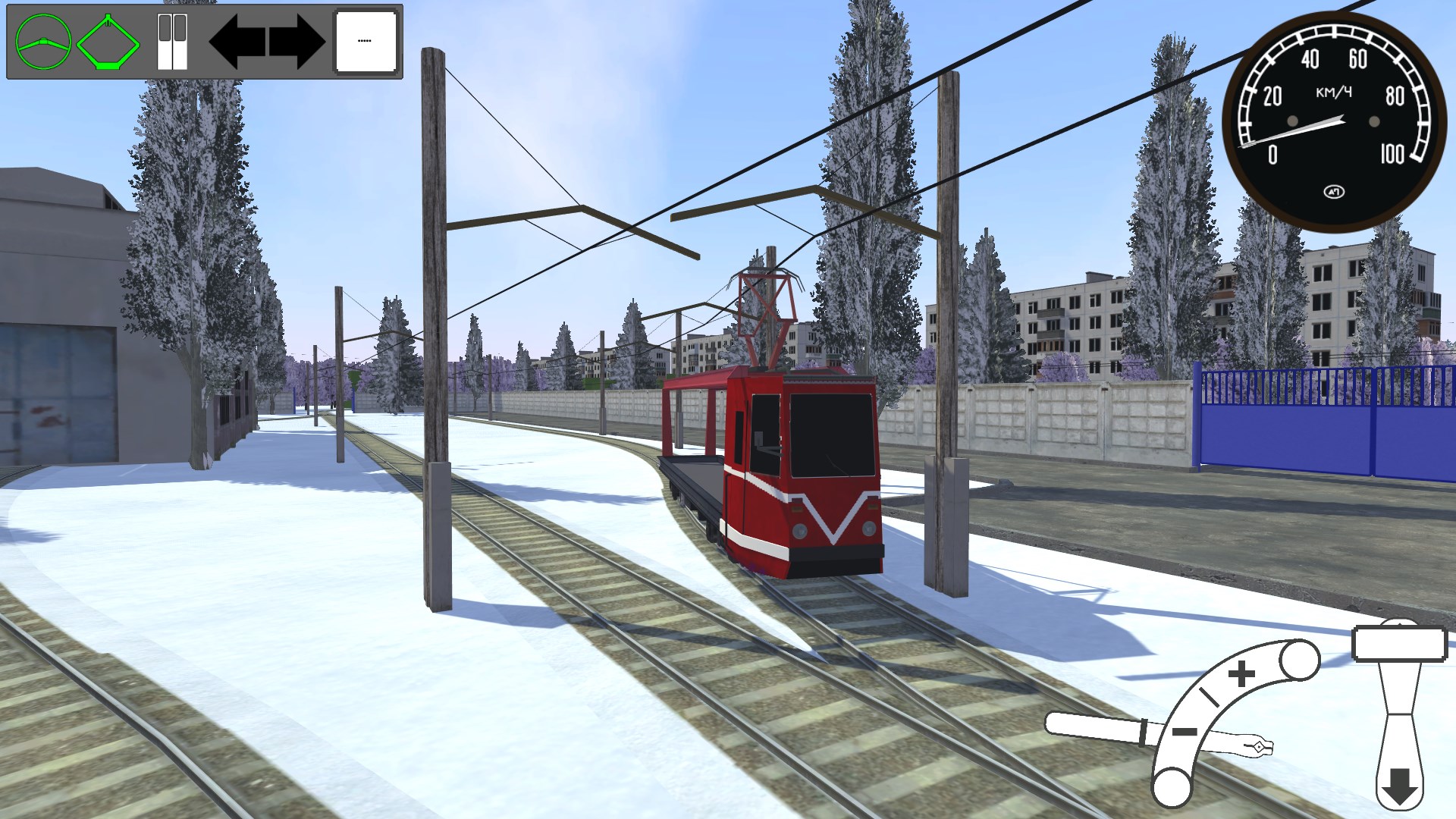
Micro-Tram Simulator: a minimalist tram simulator with arcade-style controls. THE GAME IS STILL IN DEVELOPMENT AND IS CURRENTLY IN OPEN TESTING. Gameplay: The game has very simple controls that are easy to get used to. You have several tram models to choose from. When you enter the map, all trams are automatically controlled; all you have to do is find the one you want and take control. To accelerate or decelerate, turn the controller stick to the appropriate position. Navigating switches: If the tram is on a route, you don't need to worry about switches; simply drive along the route, and all the switches will automatically change. To manually change a switch, you need to turn the direction indicator in the direction you want to turn (driving straight ahead also counts as a turn). However, this only works when you're not on a route. Spawning and deleting trams: To spawn a new tram, press R. In the tram spawner window that opens, you can select the desired tram and add it to the map by clicking the "Spawn" button. It will appear at the depot, and you'll only need to switch between trams until you select it. However, for some trams, in addition to a single train, a CME is also available. By default, this switch is set to "X1," meaning the tram will spawn only once, but "X2" and "X3" positions are also available, allowing you to create a train with multiple cars. Each car in a CME is a separate car, so you can switch to it and choose a paint job for it. To delete a tram from the map, switch to the desired tram and click the "Delete" button in the same tram spawner window. If you are on the first CME at this point, it will be completely deleted. If you are on the second or last CME, the entire train will be deleted except for the previous car. If there are no other trams on the map besides the CME, the first car will remain. Route System: To release a tram from a route, open the route menu by pressing E. The "Release" button will be available at the top of this window. Clicking this button releases the bot from the route and will no longer move on its own; it will remain stationary with its hazard lights on. To set a route for a tram, in the same route menu window, select any route from the list (if available on the map), then click "Select," and the tram will immediately begin moving. A bot-controlled tram will always follow the route's path, no matter where it is; the arrows will always point in the desired direction. Repaints: You can change the current tram's repaint to any other (provided you have them installed). To do this, open the pause menu, select "Repaints," and select the desired repaint from the list. Then click "Apply," and the repaint will be immediately applied to the current tram. Controls: W/S and up/down arrows - accelerate and brake; X - reset the controller to zero; A/D and left/right arrows - toggle the reverser; Tab - move to the next tram; LShift + Tab - move to the previous tram; M - switch between manual and automatic control; T - raise/lower the pantograph; Q - open/close the doors; H - horn; 1 - left turn signal; 2 - right turn signal; 3 - hazard warning; E - route menu; R - spawner menu; F1 - hide the interface; F2 - debug menu; Insert - activates free camera; Num 2/4/6/8/7/9 - move free camera. Rotate the camera only when holding down the left or right mouse button.
Entertainment · Windows · Free