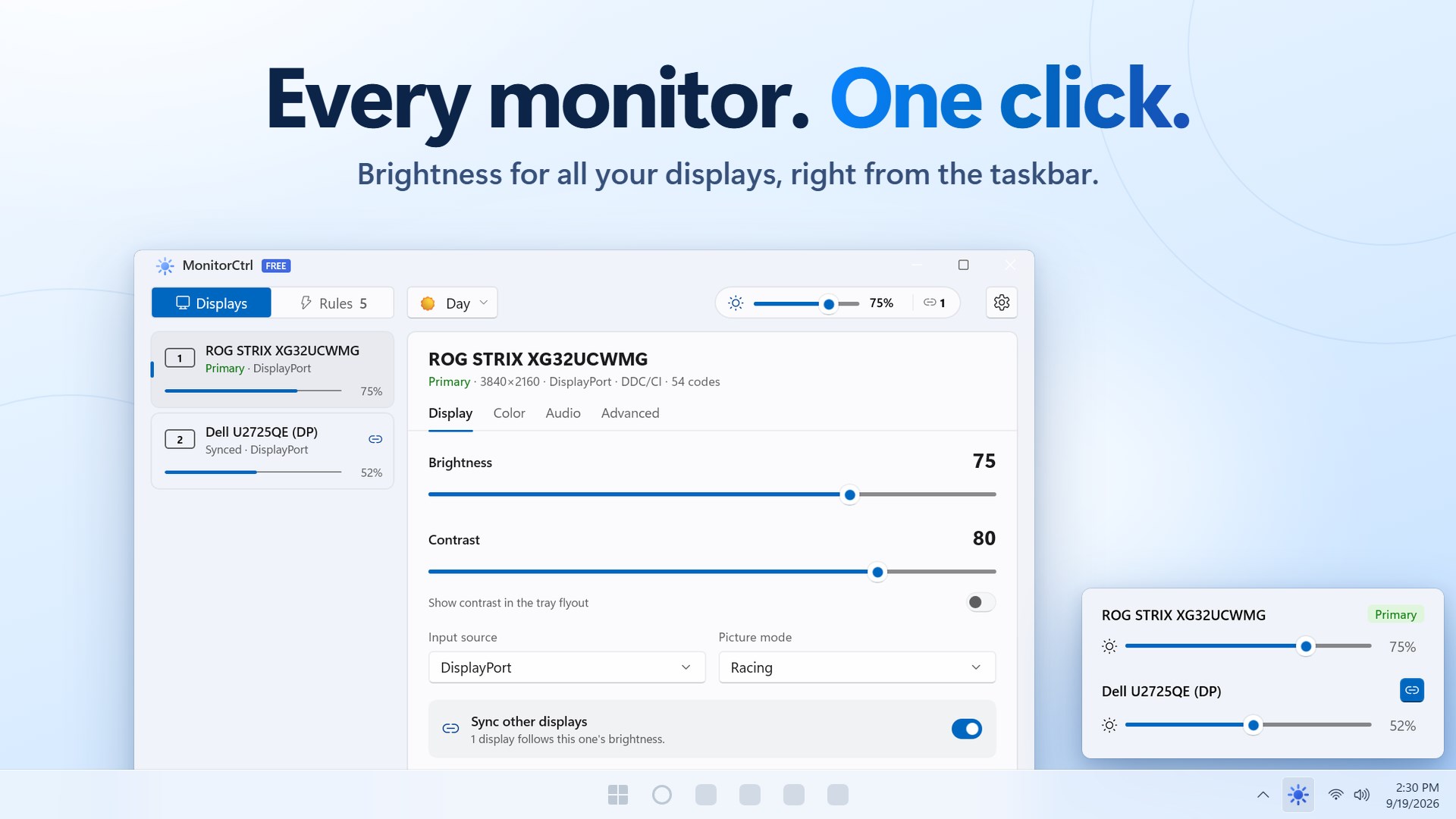
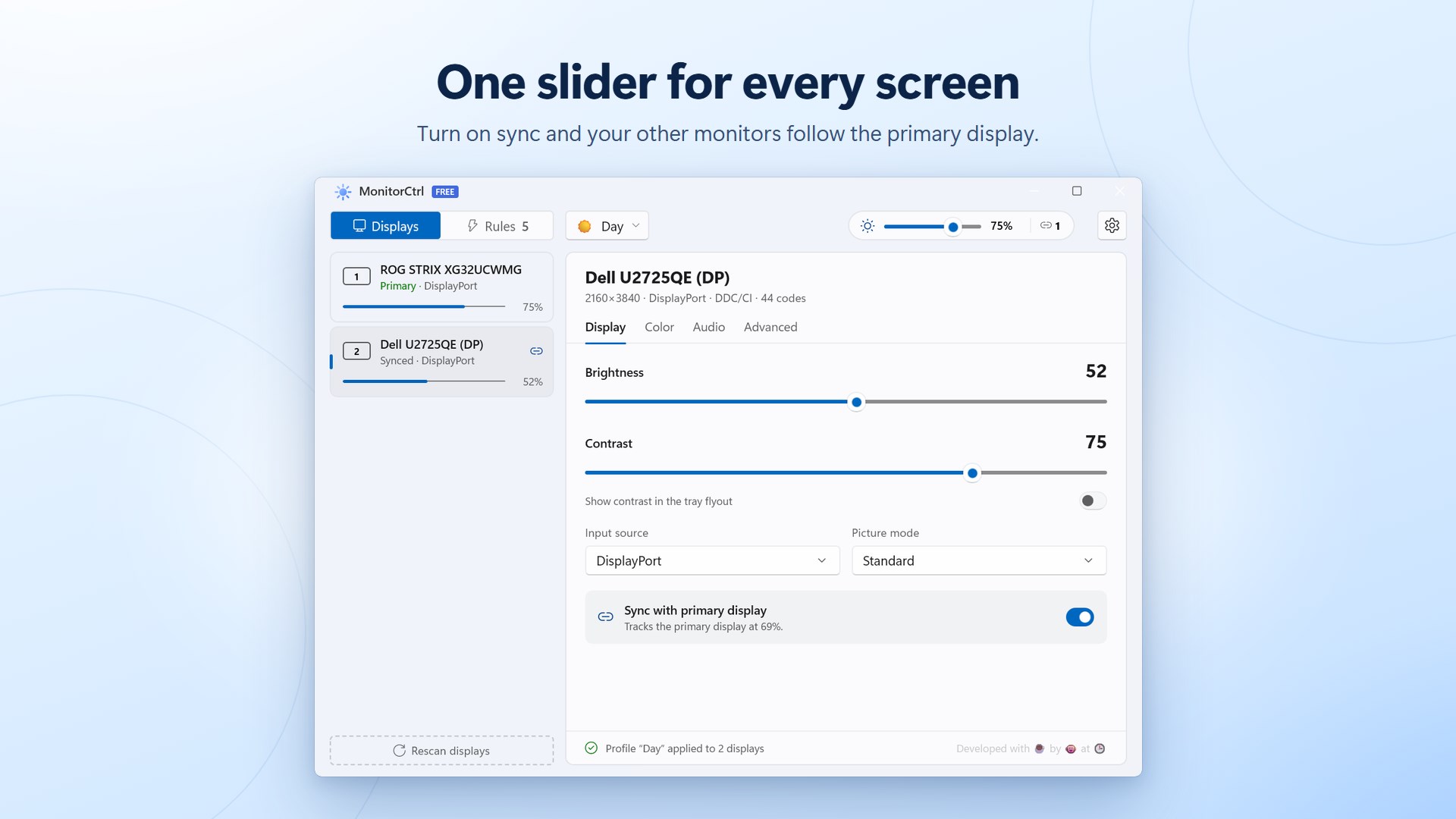
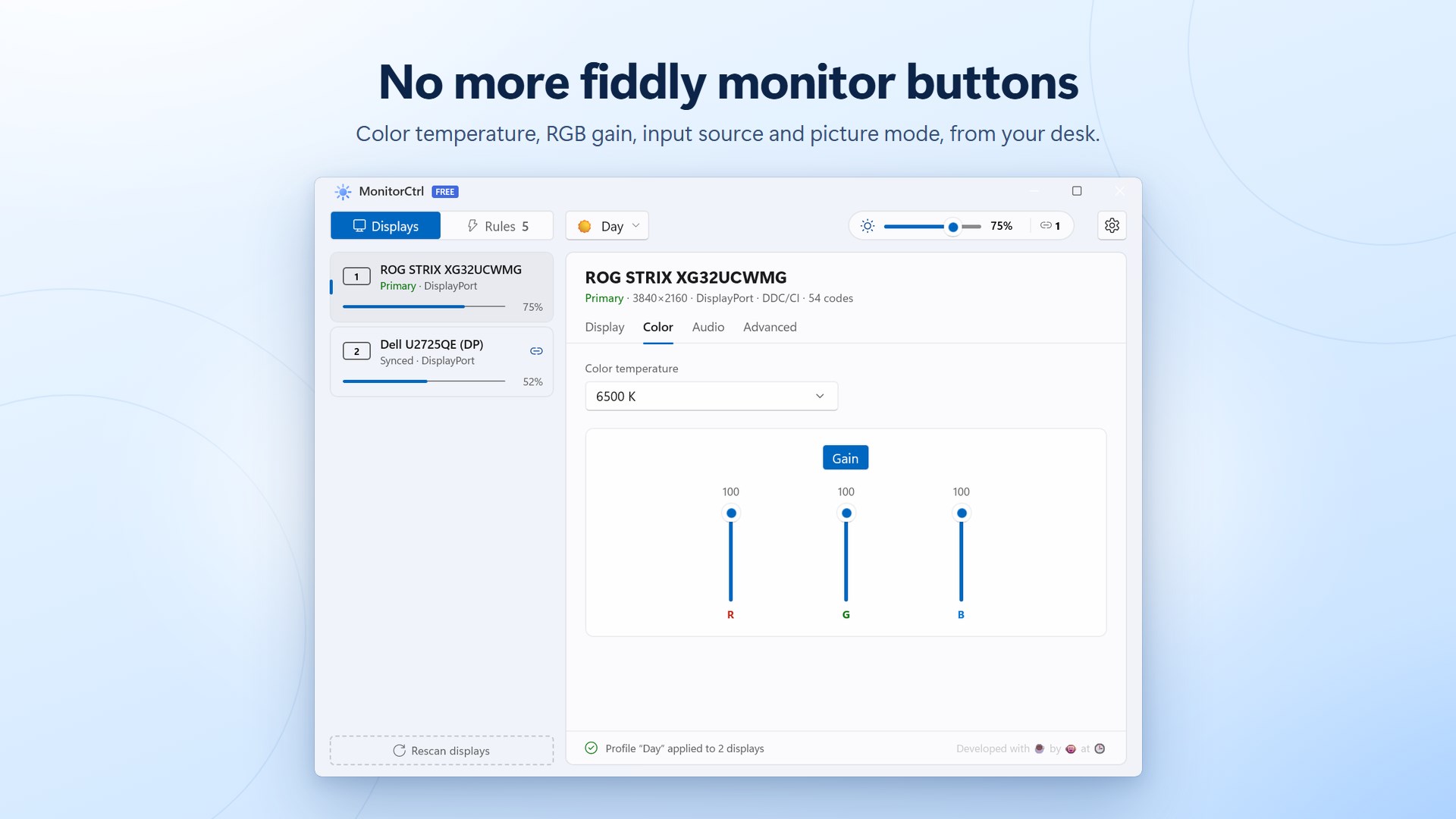
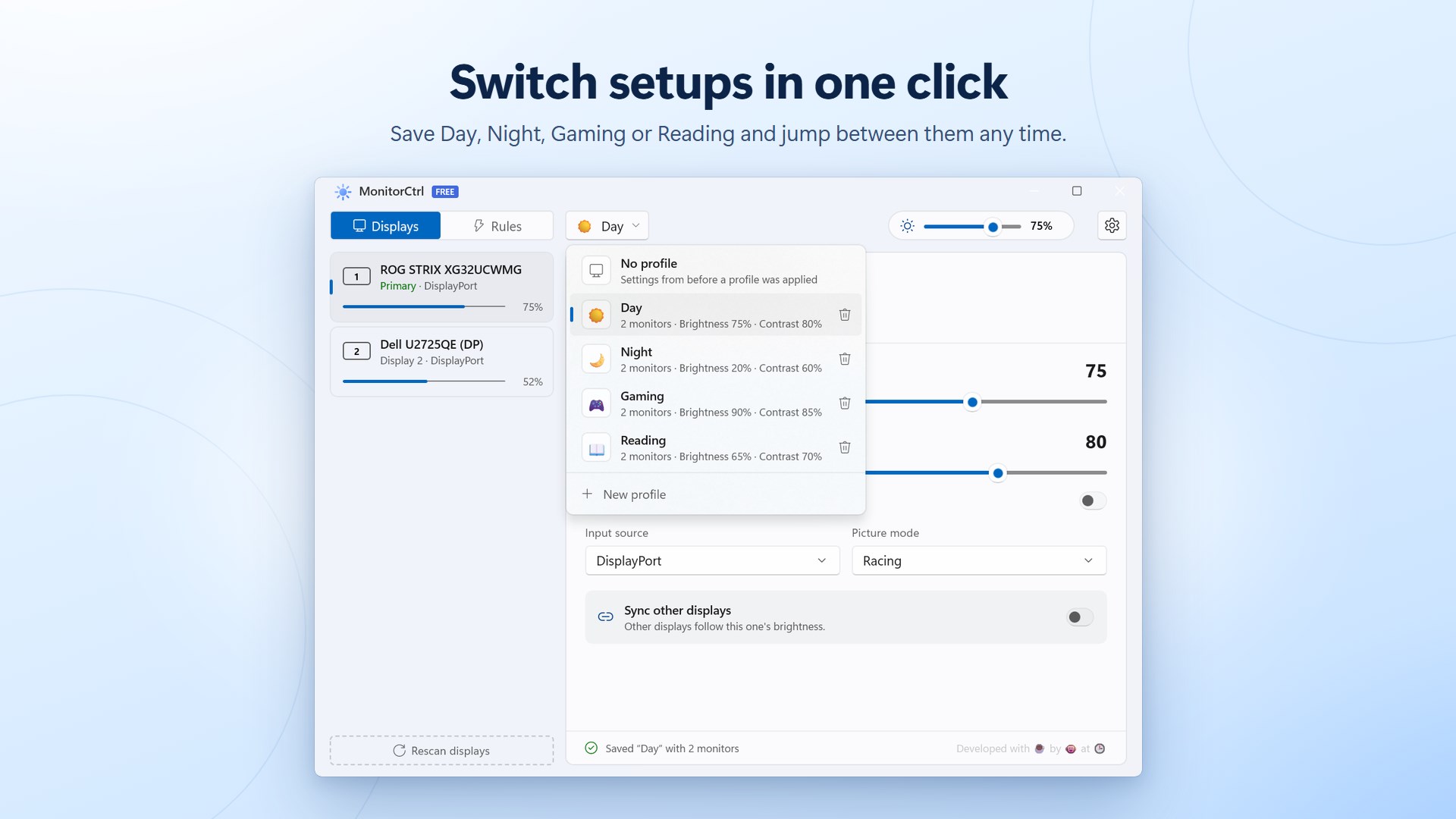
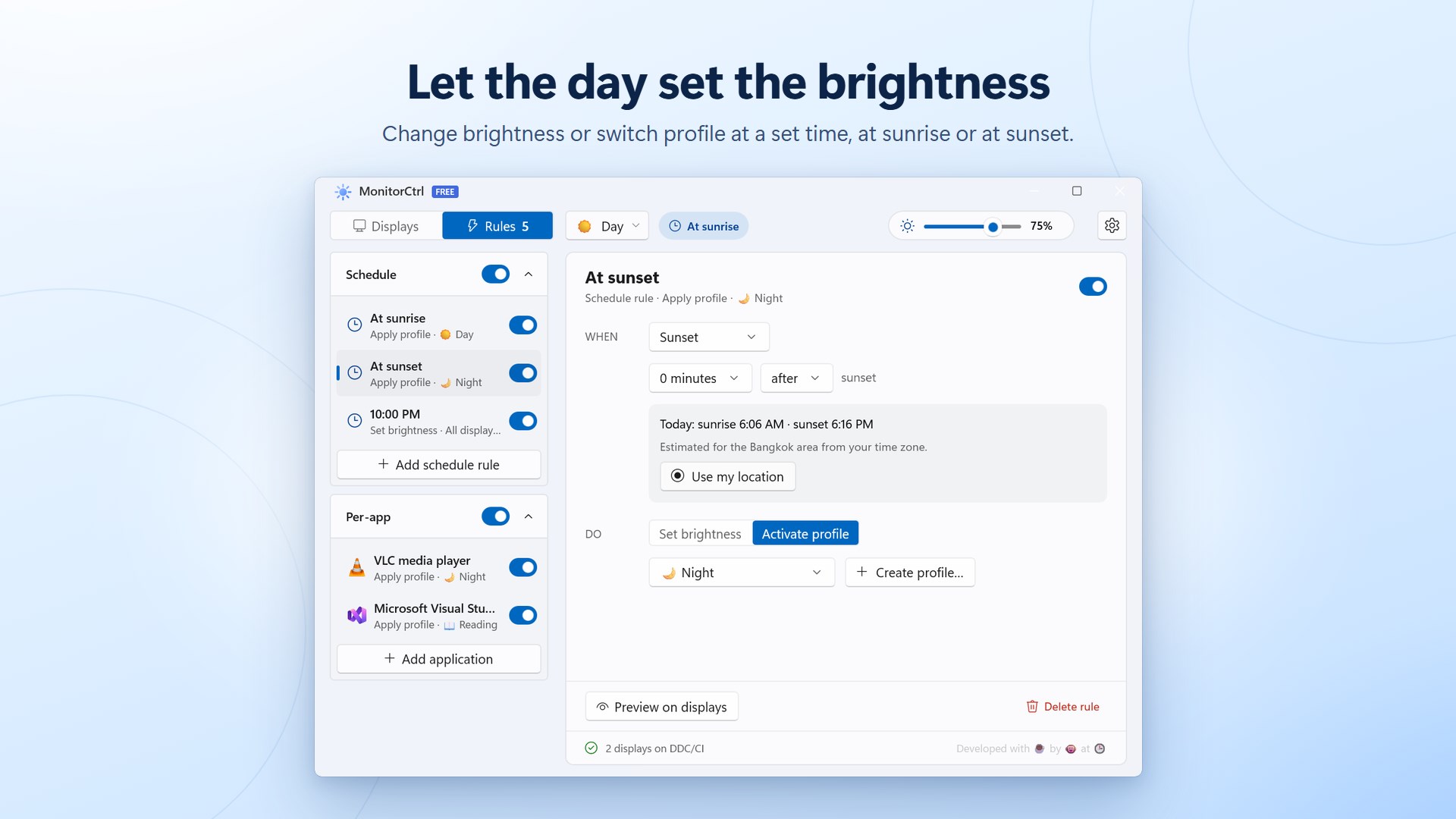
MonitorCtrl sets the brightness of every monitor on your PC from one place, right from the taskbar. Click the tray icon and drag a slider, or just scroll over the icon. No more reaching behind the screen for tiny monitor buttons, and no more menus that work differently on every display. ONE SLIDER FOR ALL YOUR SCREENS • Brightness and contrast for every connected display, side by side • Sync: turn it on and your other monitors follow the primary display, so one slider (or one scroll) sets them all • Works with external monitors over DDC/CI and with laptop screens • A compact tray panel for quick changes, and a full window when you want more MORE THAN BRIGHTNESS • Color temperature presets and red, green and blue gain • Input source: switch between HDMI, DisplayPort and USB-C without touching the monitor • Monitor speaker volume and mute • Only the controls your monitor really supports are shown PROFILES • Save the current settings of all your displays as a profile: Day, Night, Gaming, Reading, anything you like • Switch profiles in one click from the window or the tray • Export your profiles and import them on another PC ALWAYS AT HAND • Scroll over the tray icon to change brightness in 5% steps • Global keyboard shortcuts for brighter, dimmer and showing the window, working in any app • A small on-screen indicator shows the new level • Starts with Windows and waits quietly in the tray AUTOMATIC (PRO) • Schedule: change brightness or switch profile at a set time, at sunrise or at sunset. Sunrise and sunset are worked out for where you are, with no account and no sign-in • Per-app profiles: brighter while you play, softer while you read, switched as soon as the app comes to the front and put back when you leave it • Preview any rule on your displays before you save it • Advanced controls: picture mode, gamma, sharpness, saturation, hue, 6-axis color, black level, scaling and OSD lock, or any control by its VCP code FREE AND PRO Free covers brightness, contrast, sync, color temperature, RGB gain, input source, volume, profiles, the tray panel and keyboard shortcuts, with no time limit. Pro adds the schedule, per-app profiles and the advanced controls, as a one-time purchase. BEFORE YOU START External monitors are controlled over DDC/CI, which most monitors support. On some models it is switched off in the monitor's own menu: turn it on there and press Rescan displays. What each monitor offers beyond brightness depends on its firmware. Built for Windows 11 in the Fluent style, with light and dark themes. It is small, starts instantly and uses almost no memory while it waits in the tray.
Utilities · Windows · Free
Rating: 4.6 out of 5, based on 14 user ratings.