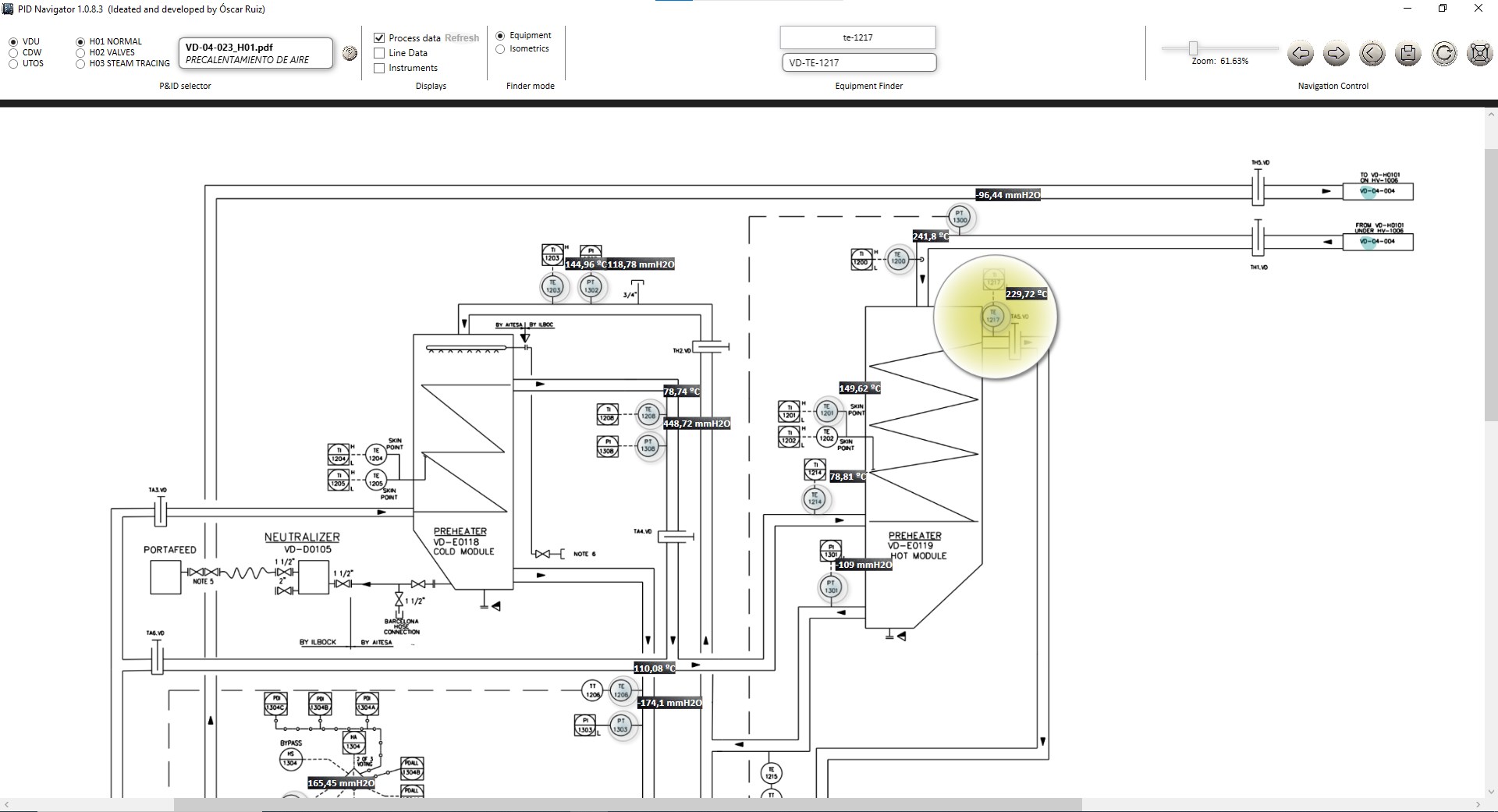
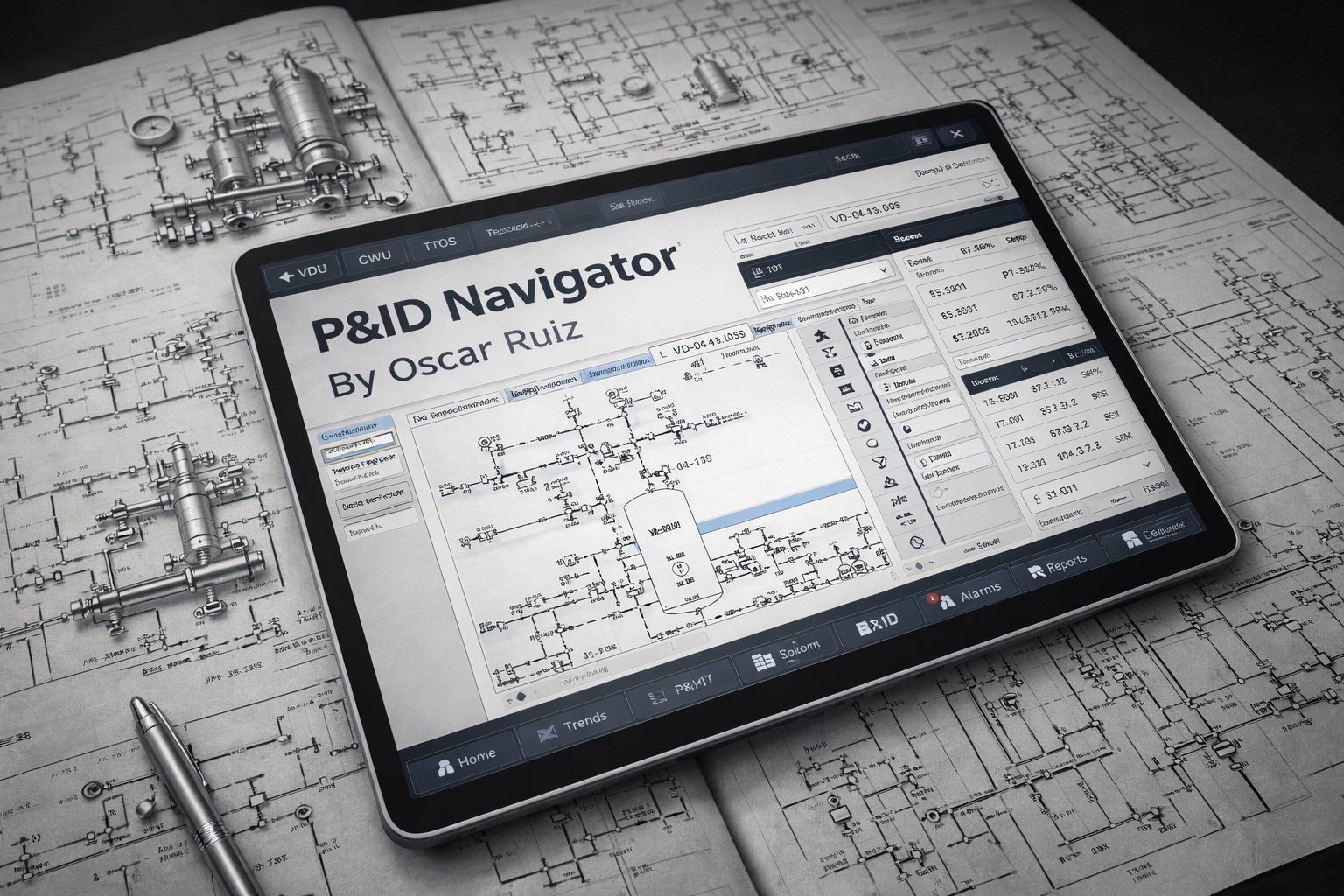
Note: This application requires the prior installation of the Therefore™ SDK to function properly. Please ensure that the Therefore™ SDK is installed on your system before using the application. PID Navigator is an application designed to facilitate the visualization and navigation of P&ID diagrams in different areas of the plant. Automatic Connection and Plan Grouping When you launch the application, it automatically connects to the document manager Therefore to locate all available P&ID plans. The plans are grouped by process areas (VDU, CDW, and UTOS) and by plan type (normal, valves, and tracing), allowing users to easily filter according to their needs. Filtering and Plan Selection The application offers selectors to filter by process area and plan type. After applying the desired filters, a list of resulting plans is displayed. By clicking on a specific plan, the latest available revision is visualized, ensuring that you always consult the most up-to-date information. Local Download and Text Recognition Visualized plans are downloaded locally to avoid re-downloading them from Therefore. The application uses optical character recognition (OCR) techniques to extract text from the plans. Although not all plans are suitable for OCR, filtering algorithms and iterations have been implemented to obtain equipment TAG locations with a high degree of accuracy (over 95%). Equipment Search PID Navigator offers an equipment search function that allows you to display a list of related equipment by entering at least four characters. Selecting an equipment highlights its location on the plan with a distinctive color. If the equipment appears on multiple P&ID plans, buttons with direct links to these plans are generated. Real-Time Process Data Visualization For equipment that provides real-time process data, the application can display this information on the visualized plan. By activating the "Process Data" option, information with distinctive colors is displayed to indicate the status of the equipment (e.g., green for open valves, red for closed valves). Clicking on the information opens the browser with a direct link to OSIsoft PI. By holding down the CTRL key and clicking on multiple equipment, you can open a link to PI with information on all selected equipment. Geolocation and Virtual Tour Visualization Use the "Equipment Finder" to locate specific equipment, which will be highlighted in yellow. Clicking on this mark opens a map. If the equipment has registered GPS coordinates, they will be displayed with a purple circle on the map. Additionally, the map includes icons indicating the location of the 360º photographs of the Virtual Tour. By clicking on these icons, you can directly access each photograph. Access via Links and .pid or .tag Files The application can be accessed through URL links. By creating a link with the prefix "tag:" or "pid:", the application will open directly to the specified P&ID or TAG. For example, the link "pid:CD-04-001" will open the P&ID CD-04-001, and the link "tag:PT-1003" will display the P&ID where the instrument VD-PT-1003 is represented. The same can be achieved using files with the .tag or .pid extensions. Any file with these extensions, when clicked, will open the application and display the P&ID or TAG specified in the file name. For example, the file VD-PT-1003.tag will show the P&ID where the instrument VD-PT-1003 is represented, and the file CD-04-001.pid will display the P&ID CD-04-001. Enhanced Navigation and Local Plan Storage For each visualized plan, the application provides link buttons that allow you to follow process lines to other P&ID plans, improving navigation and system understanding. The application saves the visualized plans in your Documents folder. The first time you run the application, it copies all existing plans from the folder X:\00_General Externos\PID to your Documents folder to facilitate navigation.
Utilities · Windows · Free