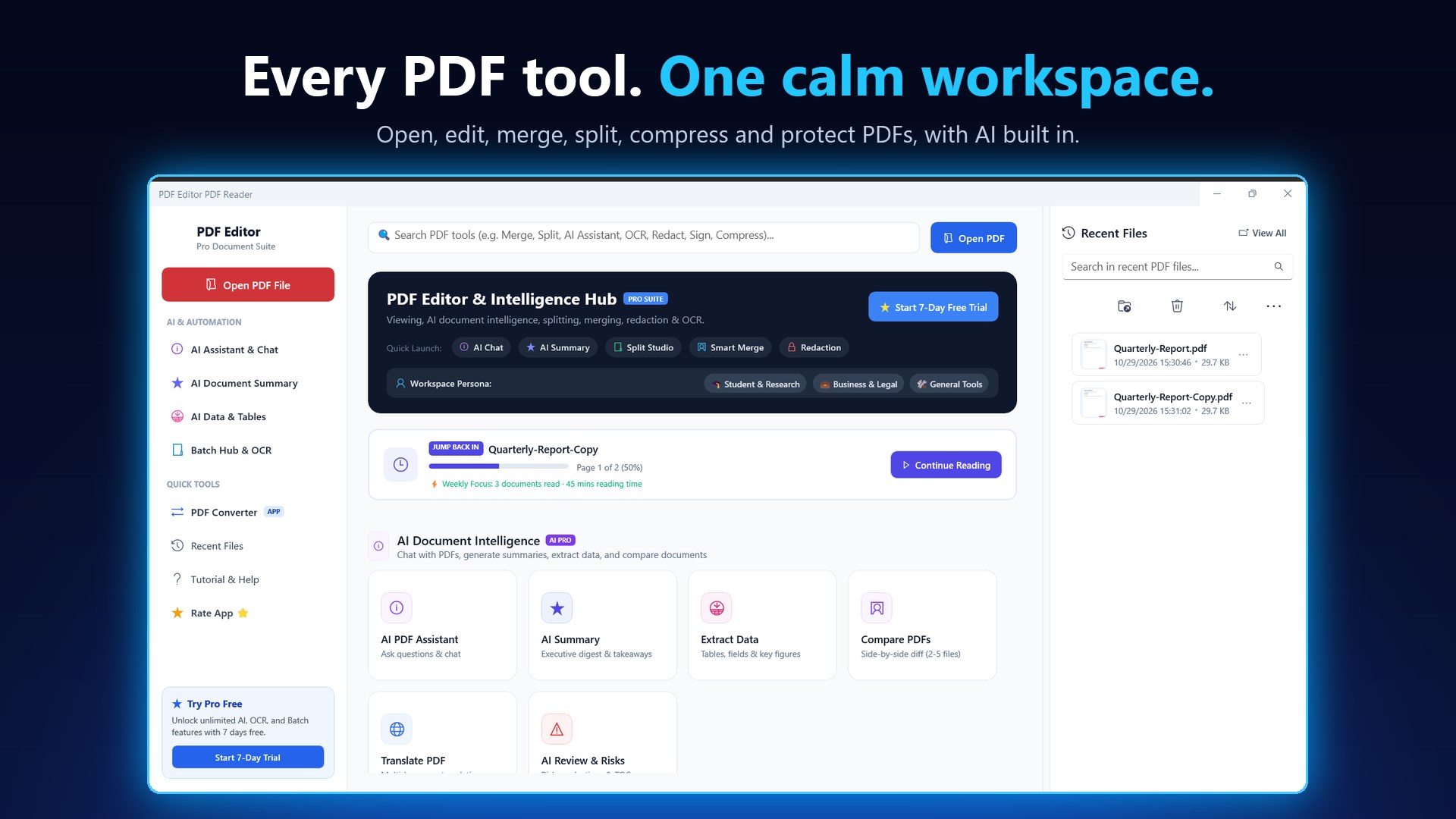
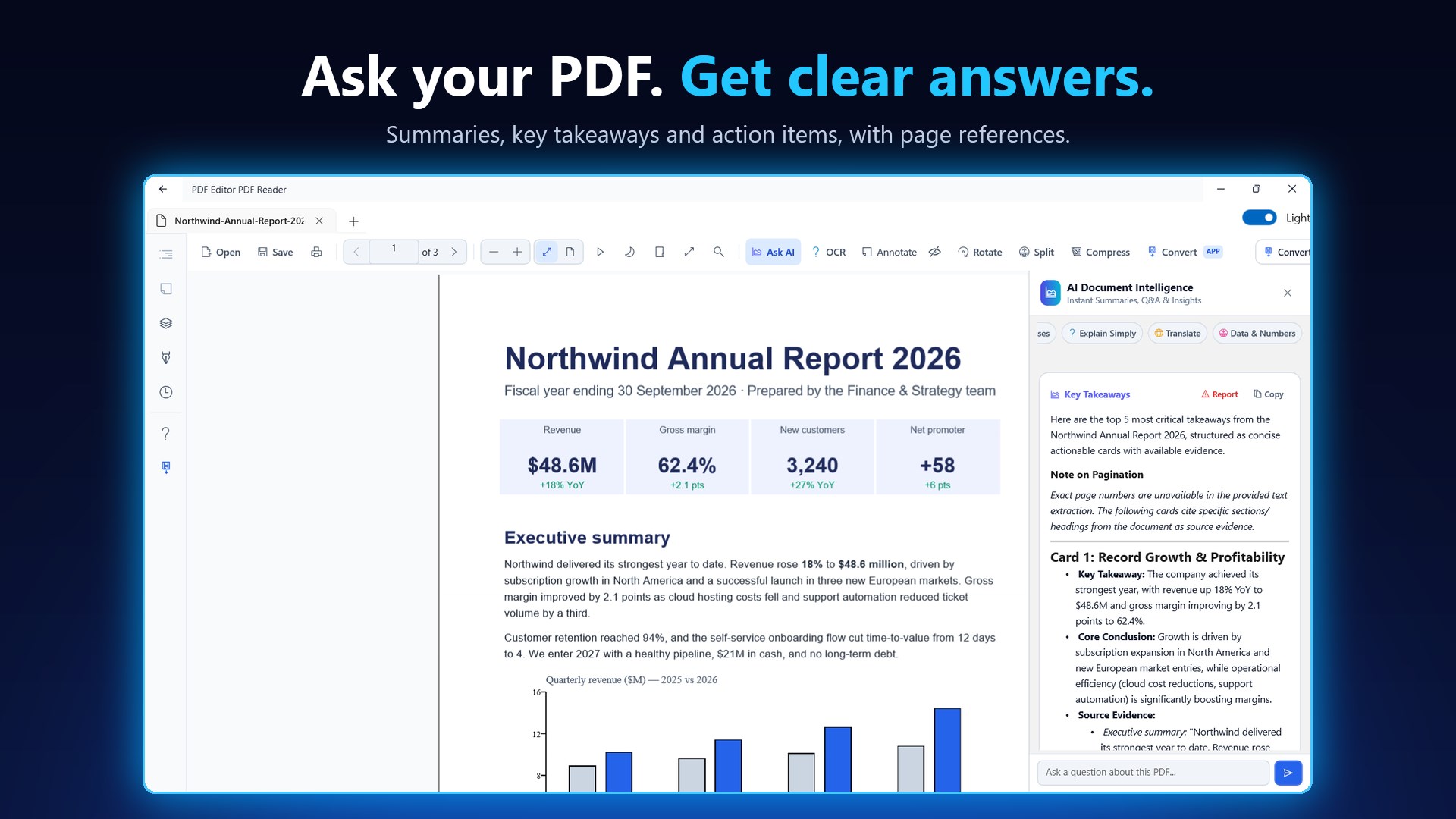
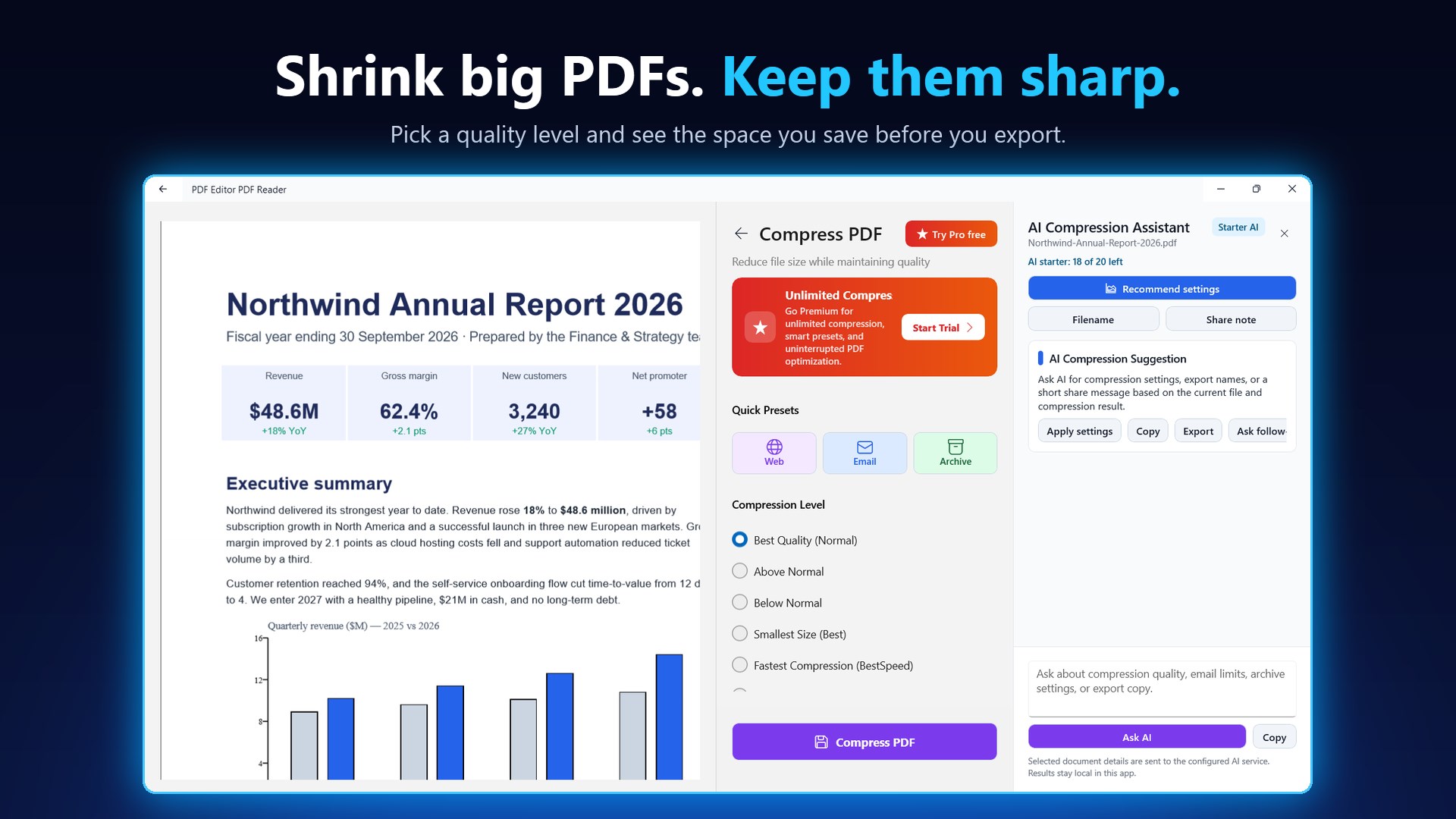
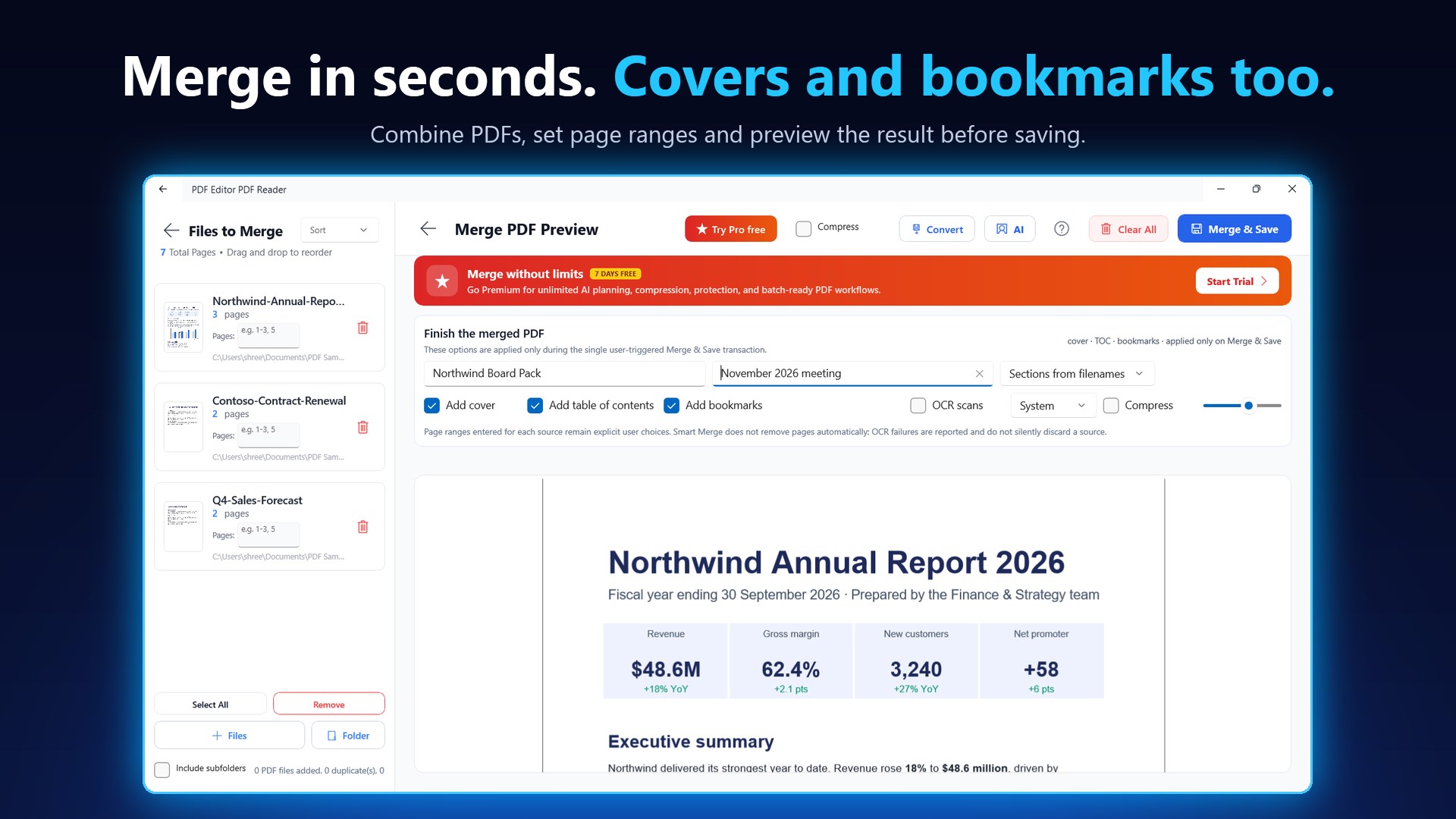
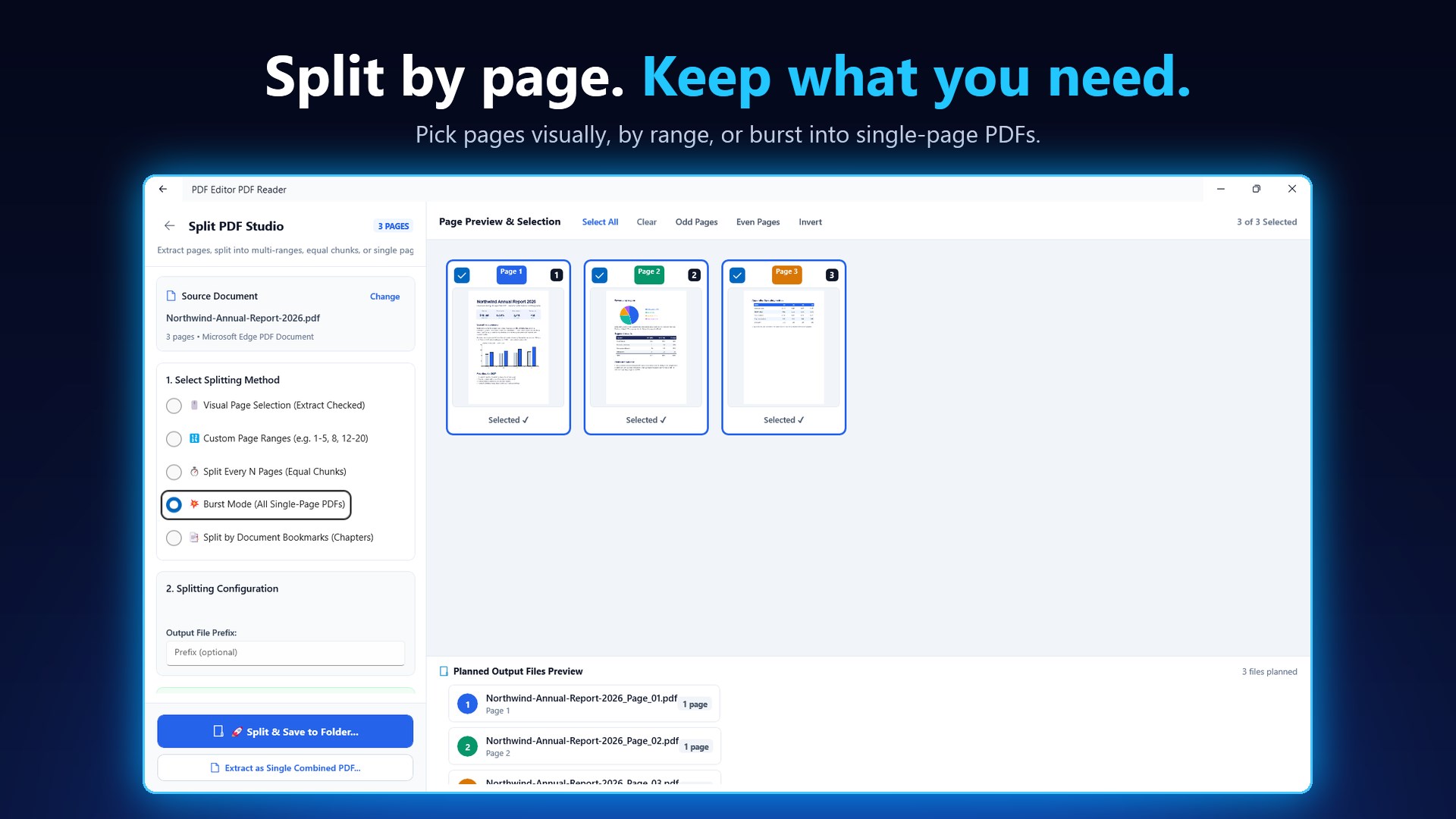
PDF Editor: PDF Reader is a fast, native Windows app for everything you do with PDFs: read, annotate, fill and sign forms, merge and split pages, protect files, and ask questions about your documents with AI. WHAT YOU CAN DO WITHOUT PRO • Read PDFs with continuous scroll, zoom, search, bookmarks and page thumbnails • Open PDFs straight from File Explorer and set the app as your default PDF viewer • Highlight, underline, add sticky notes and draw with Windows Ink and pen pressure • Fill in PDF forms and sign them • Merge PDFs, with a live preview before saving • Split PDFs 5 ways: visual page selection, custom ranges (e.g. 1-5, 8, 12-20), every N pages, single-page burst, or by bookmarks • Reorder, rotate and delete pages • Add password protection, or remove a password you know • Add text or image watermarks • Permanently redact (black out) private information • Create PDFs from images or start a blank PDF • Try the AI Assistant with 20 free AI uses PDF EDITOR PRO (OPTIONAL IN-APP PURCHASE) • Unlimited AI Assistant: chat with your PDF, summaries, compare 2 to 5 documents, translation, data and table extraction, AI redaction suggestions and AI bookmarks • OCR: make scanned PDFs searchable and selectable • PDF compression with quality presets • Batch Job Center: compress, protect and OCR many files in one run • Cloud sync of your settings CHOOSE HOW TO GET PRO • PDF Reader Editor Monthly: starts with a 7-day free trial, then renews monthly unless you cancel at least 24 hours before the trial ends. Manage or cancel any time at account.microsoft.com/services. • Premium PDF Lifetime: a one-time purchase with permanent Pro access on your Microsoft account. It never renews. Prices are shown in your local currency in the Microsoft Store checkout. AI TRANSPARENCY AI features use a large language model to analyse, summarize, translate and extract information from documents you choose. AI answers can be wrong, so review them before relying on them, especially for legal, financial or medical documents. Every AI answer has a Report button so you can flag inaccurate, harmful or unhelpful output; you can also report issues from Settings. GET STARTED 1. Open a PDF from the home screen, your recent files, or File Explorer. 2. Use the toolbar to highlight, draw, fill forms or sign. 3. Open Merge, Split, Protect, Watermark or Redact from the home screen. 4. Open the AI Assistant to ask questions, summarize, compare or translate.
Productivity · Windows · Free
Rating: 4.1 out of 5, based on 359 user ratings.