
Screenshots


About PDF Quick Compress
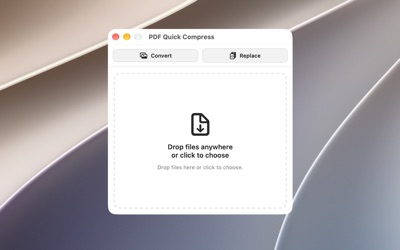
PDF Quick Compress makes PDFs smaller without making them worse. Drop a file on the window or the Dock icon and get back a lighter copy that still looks like the original. Text, fonts, vector artwork, bookmarks, links, comments and form fields are kept exactly as they were. Only pictures and scans are reduced, and only when that actually saves space.
PICK HOW HARD TO SQUEEZE
One slider sets the level. 25% tidies the file's structure and never touches images. 50%, 75% and 100% also bring photos and scans down to 200, 150 or 120 dpi with increasing JPEG compression. Black-and-white scans and faxes are left alone, because re-encoding them would only blur them. Every step is kept only if it made the file smaller, and a file that would not shrink is left untouched.
DECIDE WHERE THE RESULT GOES
Keep the original and save the compressed copy beside it, or turn on Replace to overwrite the original in place. Another document is never overwritten: if a name is already taken, a number is added. If a folder is off limits, a Save panel asks where to put the file.
A SAFETY NET FOR EVERY FILE
Before anything changes, a copy of the original is stored in the app's Backups folder and verified by checksum. If the copy cannot be verified, the file is not processed. Keep backups for 1 to 30 days or forever, and reveal or delete them in Settings.
IMAGES BECOME PDFS
Turn on Convert and drop JPEG, PNG, HEIC, TIFF, BMP or GIF files. Each becomes an upright Letter-size PDF, portrait or landscape to match the picture, saved next to the image and compressed like everything else.
BUILT FOR BATCHES
Drop several files at once and they run one after another with a progress bar. The Dock icon bounces when the batch is done. Use Finder's Open With, drop files on the Dock icon, or press Command-O.
PRIVATE BY DESIGN
Everything is processed on your Mac. Nothing is uploaded, nothing is collected, and no account is needed.
GOOD TO KNOW
• Digitally signed PDFs are never compressed, so signatures stay valid.
• Pages that carry form fields are left exactly as they are.
• Only the first page of a multi-page TIFF is converted.
AVALW Coverage
Not yet mentioned in AVALW articles.
Similar apps


 Pulse by McDonaldsMcDonald'sConfident, on-track shifts★ 4.8 7885k


 Booking.com for BusinessBooking.comManage your business travel with the Booking.com for Business app! Book trips and manage expenses in just a few minutes. - Book your whole business trip in one ★ 4.8 6450k


 ADP Mobile SolutionsADP, IncADP Mobile Solutions provides you with an easy and convenient way to access payroll, time & attendance, benefits, and other vital HR information for you and you★ 4.7 4460k


 Indeed Job SearchIndeed Inc.Discover your next job opportunity on Indeed, the free job search app designed to connect you with better work anytime, anywhere. Forget the other job search ap★ 4.8 4078k


 Microsoft TeamsMicrosoft CorporationWhether you’re connecting with your community for an upcoming activity or working with teammates on a project, Microsoft Teams helps bring people together so th★ 4.8 3378k


 Zoom WorkplaceZoom Communications, Inc.Zoom Workplace helps you streamline your day and collaborate effortlessly with the power of AI. Zoom Workplace brings video meetings, chat, phone, appointment s★ 4.7 3244k


 DoorDash - DasherDoorDash, Inc.Enjoy the freedom to be your own boss and earn money on your schedule. Plus, get 100% of your tips, always. * CASH AFTER EVERY DASH * Get paid right after every★ 4.7 2464k


 Duo MobileDuo Security LLCDuo Mobile works with Duo Security's two-factor authentication service to make logins more secure. The application generates passcodes for login and can receive★ 4.9 2306k
More by this developer


 Nested UplistNope Dragon LCNestedUplist is more than a to-do list. It is a flexible planning app built to help you turn big goals into clear next steps. Use it for everyday tasks, long-te-


 Sheet Music FinderNope Dragon LCFind classical piano music that fits your mood and skill level. Sheet Music Finder is a library of 814 piano pieces. Each piece is tagged by feel, color, tempo,★ 5.0 1


 Undercast Weather AetherNope Dragon LCUndercastWeather Aether delivers forecasts alongside on-device, model-enhanced predictions you can compare side by side. In the United States those forecasts co-


 Audio RewaveNope Dragon LCAudioRewave is a fast, focused audio format converter for Mac, iPhone, and iPad. Drop in your audio files, choose a format, and convert — no subscription, no up★ 5.0 1