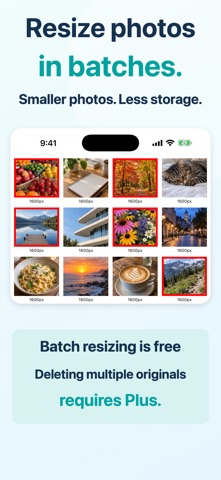
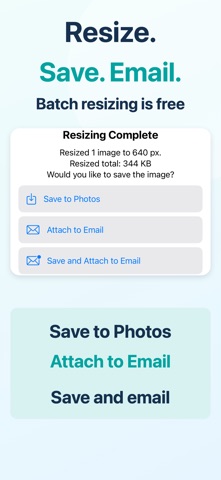
Resize multiple photos and images at once to reduce file size! You can also attach them directly to an email. Make images smaller to reduce email attachment sizes and save photo storage space. You can also save resized images and delete the originals in one operation. Plus is required to delete multiple original photos at once. How to use 1. Select the images you want to resize. You can select multiple images. 2. Tap the Resize button. 3. Choose what to do after resizing. - Save to Photos. - Attach to an email. - Save to Photos and attach to an email. That’s it! You can easily change the target image size in Settings. Choose from three ways to display image dimensions on your photos: - Simple: Show only the longer dimension, width or height. - Detailed: Show both width and height. - None: Hide image dimensions. About deleting original photos Original Live Photos are not deleted. Deleted photos remain in Recently Deleted, so available storage on your device may not increase immediately.
Photo & Video · iPhone, iPad · Free
Rating: 4.7 out of 5, based on 102 user ratings.