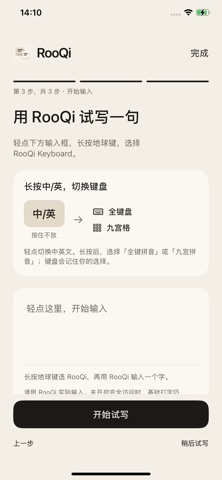
Write a sentence in the keyboard before it reaches the conversation. Open More in the original-text area to choose your input and translation languages. When you're ready, tap either the original or the translation to place that line in the current text field. You decide when to send it. With a draft present, the keyboard Send key inserts the original by default; you can choose translated text in Settings. Type in Simplified Chinese, Traditional Chinese, English, Japanese, Korean, Spanish, French, German, Hindi, Arabic, Brazilian Portuguese, Indonesian, Russian, Thai or Vietnamese. Both Chinese scripts support full and nine-key Pinyin. Hold the language key (labeled ABC on the nine-key layout) to choose. Japanese offers romaji and kana flick input. Korean offers two-set and ten-key layouts. On the Spanish, French and German layouts, hold a letter to choose an accented character. Type Hindi in Devanagari, Arabic from right to left and Russian in Cyrillic. Brazilian Portuguese includes ç and accented vowels. The Thai keyboard lets you enter and delete individual vowel and tone marks. Vietnamese supports Telex and VNI. Hold VI to switch layouts. The app interface follows your system language where supported. RooQi uses Apple Translation with language resources prepared on your device. Preparing them for the first time requires an internet connection. Once ready, supported language pairs can translate on the device. Availability depends on your device, the language pair and iOS. When automatic translation is enabled, a pause in typing can trigger a translation. Your existing preference still applies. Check important details before inserting the result. Basic typing works without Full Access. Keyboard translation and reading a translation aloud require Full Access. Read-aloud uses system voices. Your input and translations are not uploaded to the developer's servers. Draft recovery is off by default. If you enable it, the keyboard can keep the current unfinished draft and one previous sentence on the device for up to 24 hours. Restoring text never inserts or sends it automatically. For iPhone with iOS 18 or later. Secure fields and apps that restrict third-party keyboards may use the system keyboard. Support: hello@rooqi.ai
Utilities · iPhone, iPad · Free
Rating: 3.0 out of 5, based on 1 user ratings.