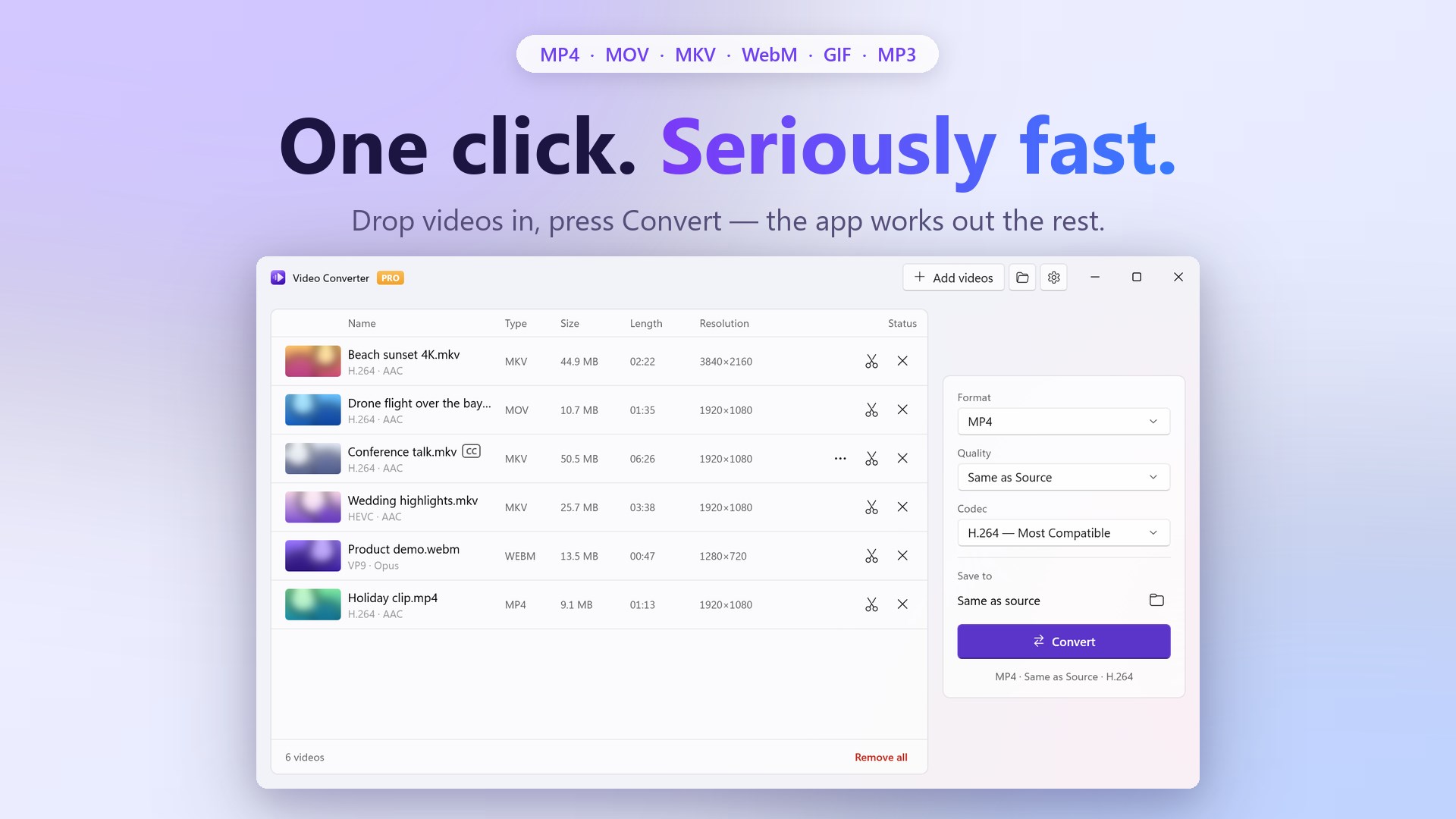
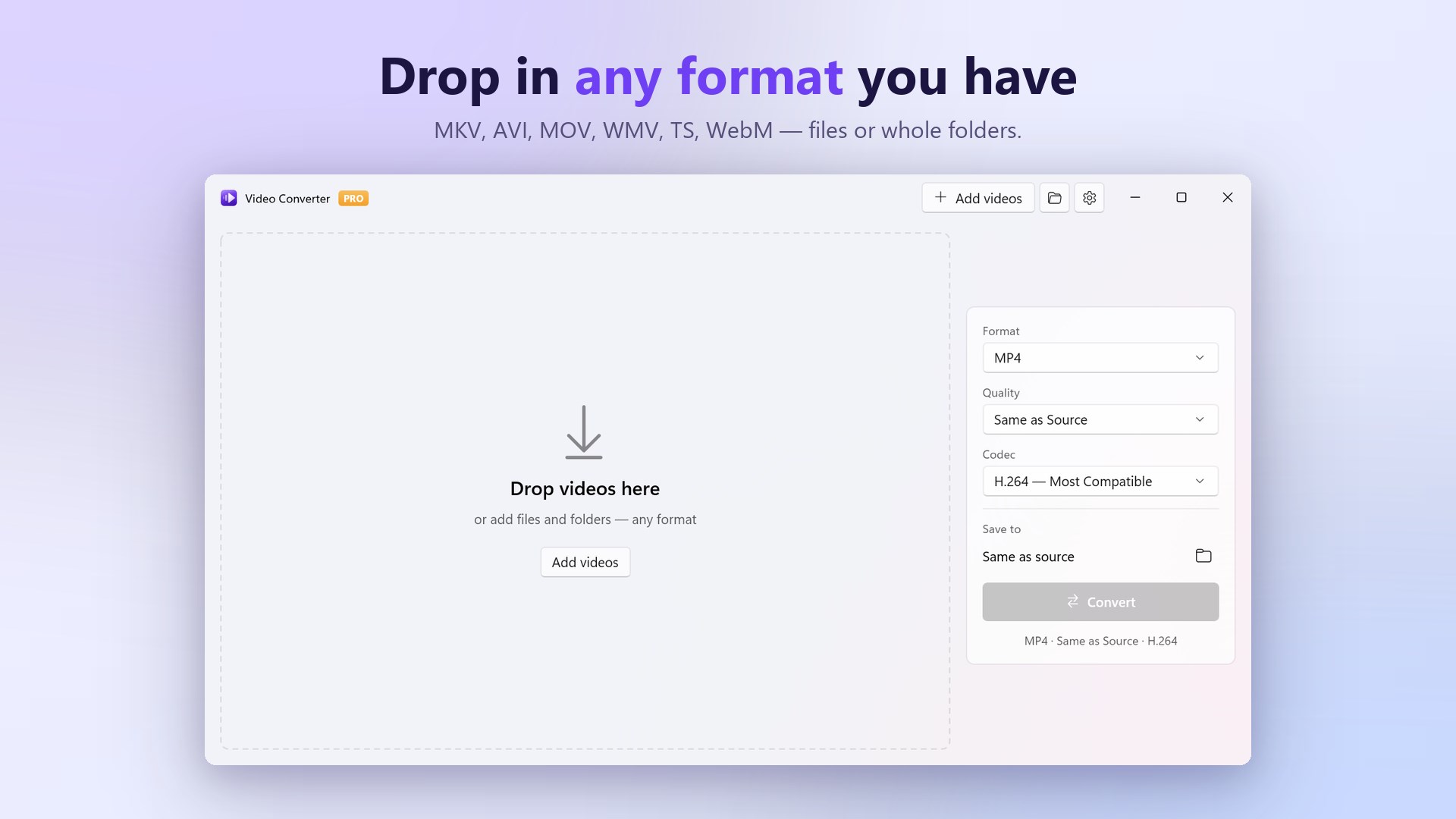
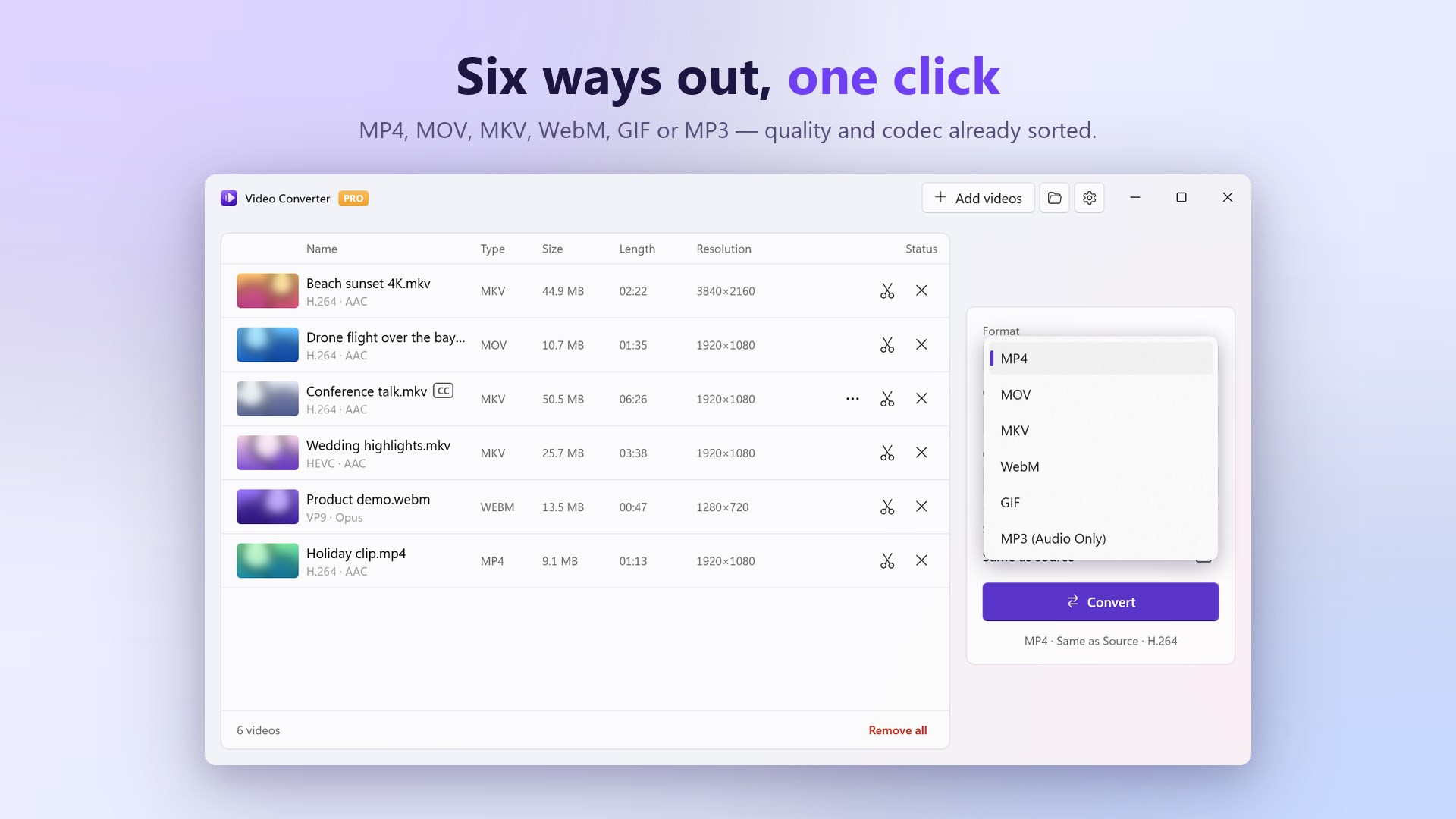
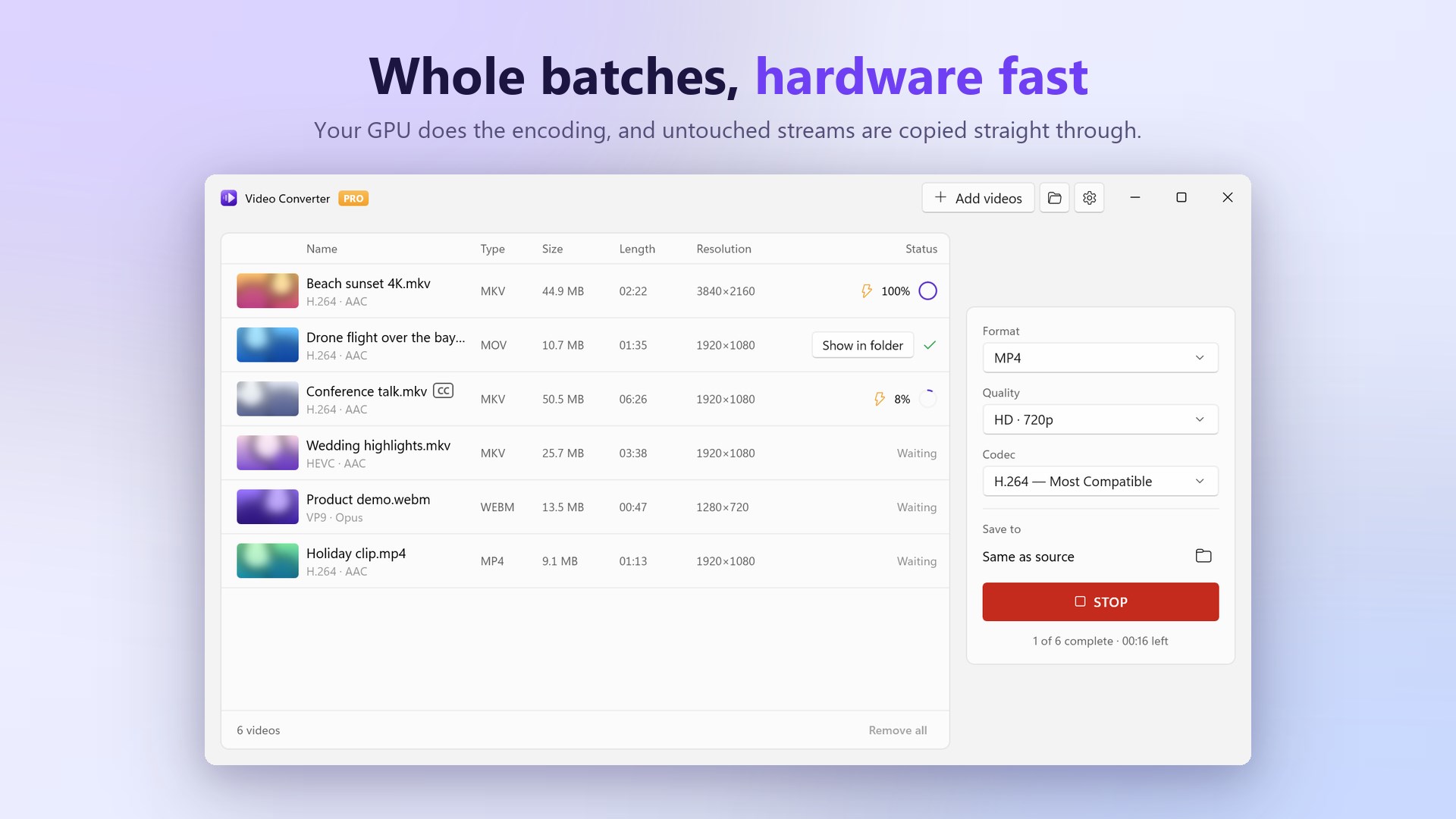
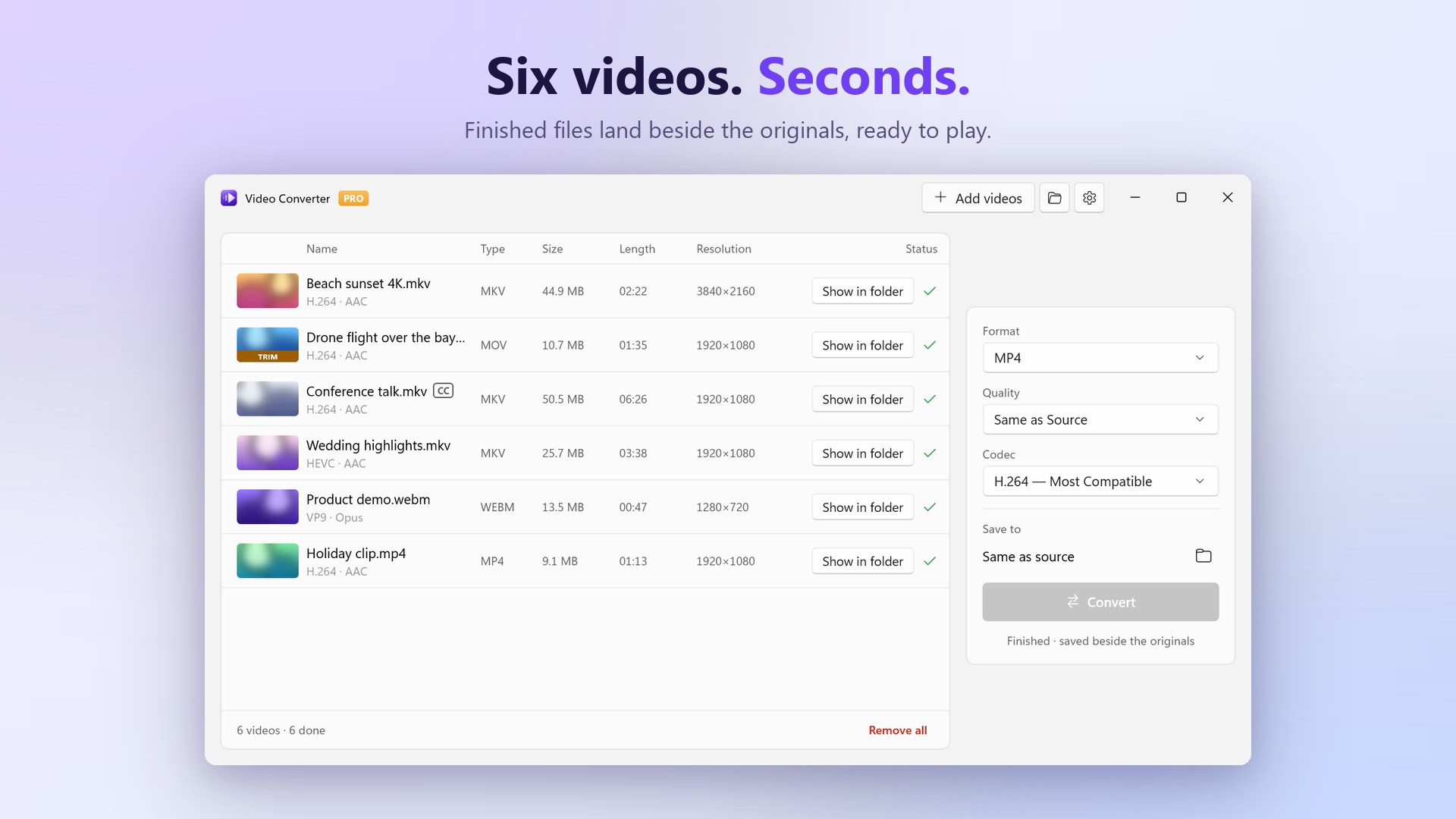
Video Converter converts any video — MKV, AVI, MOV, WMV, TS, MXF, WebM and 29 file types in all — into MP4, MOV, MKV, WebM, GIF or MP3. It is simple, fast and about as easy as converting gets: drop the files in, press Convert, and the app works out the rest. The app makes the decisions. It reads each file, works out whether the video can be copied straight through or has to be re-encoded, reaches for your GPU's encoder when one is available, tone-maps HDR down to SDR so the colours do not wash out, keeps every audio track, and carries subtitles across. One line under each file name says, in plain words, what is about to happen to it. WHAT GOES IN MP4, M4V, MOV, MKV, WebM, AVI, FLV, WMV, TS, M2TS, MTS, 3GP, 3G2, MPG, MPEG, MPE, OGV, VOB, DivX, HEVC, DV, WTV, ASF, RMVB, RM, F4V, MXF, H264 and Y4M — 29 file types. Add single files, point it at a folder, or drag them onto the window. Subtitle files sitting next to a video (SRT, ASS, SSA, VTT) are picked up with it. WHAT COMES OUT - MP4 — plays on everything - MOV — Apple devices and editing suites - MKV — keeps every track and chapter - WebM — for the web - GIF — short silent clips - MP3 — audio only Then pick a size: Same as Source, 4K 2160p, Full HD 1080p, HD 720p, or Smaller Size for a lighter file at the same resolution. And a codec: H.264 for compatibility, HEVC for smaller files, Apple ProRes for editing, AV1 for the newest devices. FAST, BY NOT DOING POINTLESS WORK A stream that already matches what you asked for is copied rather than re-encoded, so plenty of conversions finish in seconds. When re-encoding is genuinely needed, hardware encoding on NVIDIA, Intel or AMD graphics does the heavy lifting. Queue a whole folder and the app works through the list on its own, showing progress per file and the time left for the batch. TRIM WITHOUT OPENING AN EDITOR Drag the handles across the filmstrip to set the start and end to the millisecond, or drag the selection to slide it. The trim is applied as part of the conversion — no second export, nothing lost to a round trip. EVERY TRACK ACCOUNTED FOR Films with several audio languages and subtitle tracks stay intact. Per file, you can pick which audio track and which subtitles to take, keep subtitles as a selectable track, burn them into the picture, or drop them. Chapter markers and file metadata come across too. FINISH THE BATCH WITHOUT YOU Set what happens when the queue empties — nothing, sleep, or shut down — and the app counts down first, so you can call it off if you walk back in. SETTINGS THAT STAY OUT OF THE WAY Save beside the originals or into a folder you choose, optionally in a "Converted" subfolder. Keep original metadata and chapter markers. Move originals to the Recycle Bin once a conversion succeeds. Run several conversions at once. Turn hardware encoding off, or force a re-encode, when you want exact control. BUILT FOR WINDOWS 11 A native app in the Windows 11 style, following your light or dark theme, with Mica behind the window. It starts quickly, stays out of the way, and does not run in the background once you close it. FREE AND PRO Free converts any video at full quality — no watermark, no length limit, no ads, no account — one file per press of Convert, in H.264. Pro adds: - Convert whole batches non-stop, without pressing Convert again - Run several conversions at the same time - HEVC, Apple ProRes and AV1 output - Burn subtitles into the picture - Sleep or shut down the PC when the batch finishes YOUR FILES STAY YOURS Everything runs on your own PC. Nothing is uploaded, there is no account to create, and there are no ads.
Utilities · Windows · Free
Rating: 4.6 out of 5, based on 581 user ratings.