
Screenshots


About Control Deck
Control Deck turns your built-in display into a dedicated control surface when you connect an external monitor. It helps you put unused screen space to work with fast access to apps, system controls, and shortcuts without cluttering your main workspace.
Connect an external display and Control Deck appears on your built-in display. Disconnect it and Control Deck steps aside.
App Launcher:
Auto mode shows your running apps and updates in real time. Manual mode lets you pin the apps you choose. Use the main tile grid for your primary apps, and the secondary column for frequently used apps you want close at hand.
You can launch apps, switch to them, bring them forward, or block apps you do not want shown.
Shortcuts Column:
Run shortcuts directly from the deck. Assign a shortcut by name, choose an icon, and pick a color so each tile is easy to recognize. The shortcuts column can be shown or hidden at any time.
Designed for Focus:
Control Deck uses a dark, high-contrast interface designed to remain clear on a dimmed built-in display. Large tiles make apps and actions easy to see and tap.
Features:
Auto mode for running apps
Manual mode for pinned apps and actions
Main app tile grid
Secondary app column
Optional shortcuts column
Custom icons and colors for shortcut tiles
Active app indicators
App blocking controls
Menu bar access
Control Deck lives in your menu bar and stays out of your way until you need it.
Standard Apple Terms of Use:
https://www.apple.com/legal/internet-services/itunes/dev/stdeula/
AVALW Coverage
Not yet mentioned in AVALW articles.
Similar apps


 MyJio: For Everything JioJio Platforms LimitedTrue 5G, recharges, payments & UPI, music & movies, backup, games, news & more.★ 4.4 27428k


 Microsoft WordMicrosoft CorporationThis application requires a qualifying Microsoft 365 subscription. Microsoft 365 includes premium Word, Excel, and PowerPoint apps, 1 TB cloud storage in OneDri★ 4.8 17535k
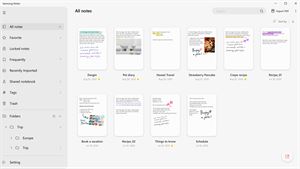
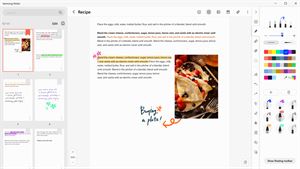
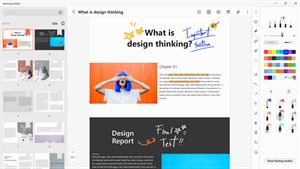
 Samsung NotesSamsung Electronics Co, Ltd.(Samsung Notes is optimized for Samsung Galaxy Books. Other computers may have issues running it.) "Samsung Notes allows you to use the enhanced S Pen to write ★ 4.8 15228k
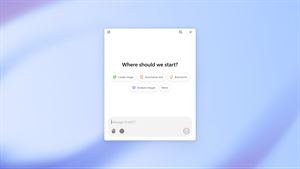
 ChatGPT ClassicOpenAIThe official ChatGPT desktop app brings you the newest model improvements from OpenAI. Do more on your PC with ChatGPT: · Instant answers—Use the [Alt + Space] ★ 4.8 11034k


 ChatGPTOpenAI OpCo, LLCIntroducing ChatGPT for iOS: OpenAI’s latest advancements at your fingertips. This official app is free, syncs your history across devices, and brings you the l★ 4.8 11034k


 Microsoft OutlookMicrosoft CorporationOutlook helps you stay connected and organized at the office and at home with easy access to emails, files, calendar events, and contacts across all your accoun★ 4.3 10673k


 Turbo VPN: Unlimited VPN ProxyINNOVATIVE CONNECTING PTE.LIMITEDDo you want online security and privacy while browsing? Turbo VPN now provides the fastest, reliable and encrypted network. With Turbo VPN, you can get the safe★ 4.7 10243k



 Microsoft ExcelMicrosoft CorporationThis application requires a qualifying Microsoft 365 subscription. Microsoft 365 includes premium Word, Excel, and PowerPoint apps, 1 TB cloud storage in OneDri★ 4.8 9702k
More by this developer


 BookTeleport: eBook TransferDaniel MiaraBookTeleport makes it easy to move your own e-books from your Mac to a USB-connected e-reader. Choose a book or simply drag it into the app. BookTeleport prepar-

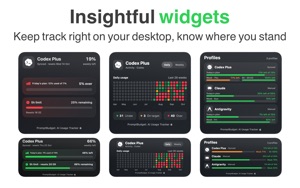

 PromptBudget: AI Usage TrackerDaniel MiaraPromptBudget helps developers pace a weekly AI usage allowance from the Mac menu bar using a compact menu app, detailed or the main app. Keep your computer awak-


 Connect My NASDaniel MiaraConnect your NAS without the usual setup hassle. Connect My NAS keeps the folders you use on your network storage available and reconnects them automatically wh-


 Spin & Draw: Drawing GuesserDaniel MiaraTurn any table into a drawing game night. Spin & Draw is a pass-the-phone drawing and guessing game for 2–6 players. Grab some paper, a notebook or a whiteboard-